
Free 3D VTuber model Vroid and VSeeFace - Budget VTuber Pt.1
🛍️ Products Mentioned (2)

Part 1. Today i'm briefly going over methods that I use to have a 3D VTuber model while on a budget. There are other tutorials that cover these methods, but I wanted to have various methods that I used, all in one set of videos. In this video, we'll briefly look at the basics to making your own VRoid Avatar, and using it in VSeeFace. Links to the programs: Vroid Studio: https://store.steampowered.com/app/1486350/VRoid_Studio_v201/ VSeeFace: https://www.vseeface.icu/#download
About This Video
Frequently Asked Questions
🎬 More from Side Salad Audio

A good gaming headset for $100 - Simgot EP5
552 views
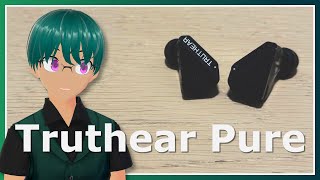
A successor to the Truthear Hexa? - Truthear Pure IEM Review ($90)
1.1K views
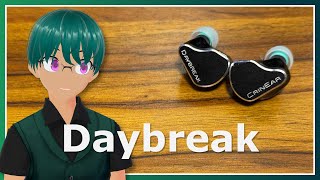
Better than Project Meta!- CrinEar Daybreak IEMs Review! ($170)
1.5K views
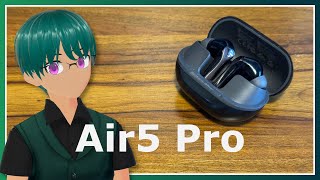
Soundpeats Air5 Pro TWS Earphones
136 views
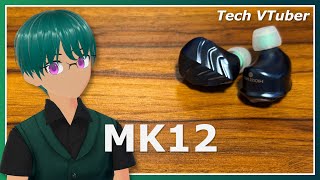
Hidize MK12 Turris IEM Review
373 views
![Gaming IEMs that I actually like! - Moondrop Rays [IEM Review]](https://img.youtube.com/vi/L3OgRB7Hc40/mqdefault.jpg)
Gaming IEMs that I actually like! - Moondrop Rays [IEM Review]
757 views