
HOW TO Transfer Files From The DJI Osmo Pocket 3 | A Beginner's Guide
🛍️ Products Mentioned (3)
New Osmo Pocket 3 owners! Did you capture a ton of epic footage but don't know how to get it off your camera? This quick and easy guide will have you transferring videos to your computer, iPad, or phone in minutes! Free up space on your Osmo Pocket 3's SD card, start editing those stunning videos, and share your creations. Whether you're a seasoned vlogger or just documenting your adventures, transferring your footage is an essential step. This video will walk you through the process clearly, so you can get back to creating awesome content! Having trouble? Don't hesitate to leave a comment below, and I'll be happy to help! 0:00 Introduction | Please Like and Subscribe! 0:36 Transfer Files from Osmo to Computer (2 Ways) 2:41 Using an External SSD for Storage 3:36 Transfer Files from Osmo to Tablet/Phone (DJI Mimo App) 5:13 Edit Right Away With CapCut 5:23 Outro | Thank you! :) 🎬 Purchase my DJI Osmo Pocket 3 LUT Pack here: https://ko-fi.com/s/38043ec2d2 My favorite bags to carry my Osmo Pocket 3 and DJI Action 5 Pro: Calpak Luka Belt Bag: https://go.shopmy.us/p-27820602 Calpak Luka Laptop Backpack: https://go.shopmy.us/p-27820711 #DJI #OsmoPocket3 #TransferVideos #Editing #Vlogging Recommended Videos to learn more on the Osmo Pocket 3: https://www.youtube.com/watch?v=uJmSNIXtoiI https://www.youtube.com/watch?v=AaEBJIC-CqY&t=170s Contact: ColeBielecki@gmail.com
🎬 More from Cole Bielecki
5 Real Reasons I Use the Canon RF 70–200 F4 for Video!
251 views
GoPro Max 2! How to Film and Edit Dynamic Hyperlapses!
126 views

GoPro Max 2 Is Not What I Expected! VLOG Test!
134 views
Why the GoPro Max 2 Beats Every Other 360 Camera!
878 views
Canon's Best Travel Lens? Canon 28mm RF Pancake Review
1.1K views
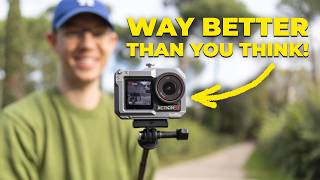
5 Reasons the DJI Action 5 Pro / Action 6 Is the Best Travel Camera! Filmed in Rome, Italy!
2.0K views