
Using the Web and Camera Control Application on Canon PTZ Cameras
There is no reason to NOT learn the Free Tools available, In this video we are controlling the Canon PTZ Cameras via the WebPage and Camera Control App. Have Questions? Leave a Comment or send an Email. CrazyAmazingNathan@gmail.com ✅ Book a Training/ Coaching time with Nathan via Zoom. www.CrazyAmazingDesigns.com/training ___ Leave a Comment, or Send me an email with your Questions or to share feedback. CrazyAmazingNathan@gmail.com ________________ 00:00 - Getting Started with Canon PTZ. 01:24 - Downloading Canon Camera Control Application. 02:02 - Searching for Cameras across the Network. 02:18 - Connecting First Cameras. 03:19 - Give the Software Credentials to Control more settings. 03:30 - Exporting Camera Config List. 03:44 - Controlling PTZ Cameras. 04:17 - Basic Camera Control Settings. 05:59 - Camera Presets from the Remote Camera Control Application. 07:13 - Camera Exposure from the Remote Camera Control Application. 09:34 - Camera White Balance from the Remote Camera Control Application. 10:25 - Adv Image Quality Settings from the Remote Camera Control Application. 11:07 - Greyed Out Settings, Rec media to SD Card? 11:46 - Customize Pages on the Remote Camera Control Application. 12:59 - Camera Management on the Remote Camera Control Application. 13:10 - Camera Power from the Remote Camera Control Application. 13:22 - Keyboard Shortcuts from the Remote Camera Control Application. 13:49 - Camera Maintenance Settings from Remote Camera Control Application. 13:59 - Browser/ Web Camera Control Settings. 15:46 - Configure XLR Audio Ports on the Canon PTZ Cameras. 16:31 - Set Camera Pan/ Tilt Limits. 16:54 - Network Settings. 17:38 - Security Settings. 17:54 - Manage Add-Ons. 18:12 - Canon PTZ Maintenance Settings. 18:24 - Check Out Controllers, or StreamDeck. 18:40 - Canon PTZ with StreamDeck. 18:54 - Subscribe for Future Videos!
About This Video
Frequently Asked Questions
🎬 More from Crazy Amazing Designs
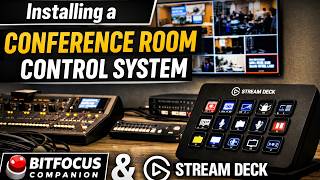
Installing a Conference Room (Control System) with BitFocus Companion/ StreamDeck
2.9K views
Controlling LED Lights with StreamDeck (BitFocus Companion)
1.3K views
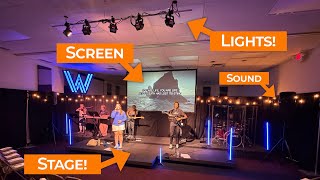
Building a Mobile Audio/ Video / Lighting Setup for Young Adult Ministry
1.9K views
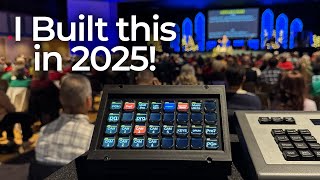
2025 was Filled with Crazy FUN Projects at Crazy Amazing Designs
870 views
Import .PPTX as Editable Presentation | ProPresenter V21
1.0K views
Introducing my LED Christmas Tree Controller built for Live Events | Crazy Amazing Designs
978 views