Vigyata.AI
Is this your channel?

Working with Multi-Part Files in Lightburn (Tutorial)

5.2K views· 138 likes· 6:00· Sep 3, 2024

🛍️ Products Mentioned (2)

In this Lightburn tutorial, you are going to learn 3 ways to work with multi-part designs in Lightburn software. ************ Website: https://golasergo.com/ Pinterest: https://www.pinterest.com.au/golasergo/ Facebook: https://www.facebook.com/golasergo/

About This Video

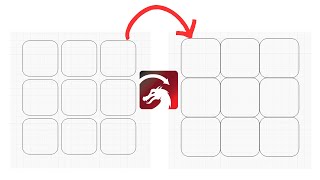
In this LightBurn tutorial I’m showing you three practical ways to work with multi-part (multi-art) files—especially when a design comes in with a ton of pieces and you only want to cut one or two parts at a time instead of the whole thing. This was a subscriber request, and it’s a super common situation: the file is laid out as a full set of parts, it may not even fit your machine bed, and resizing isn’t always the answer—particularly for tabbed models that were designed around a specific material thickness. First, I walk through the quickest method: select the part you want, group it so it doesn’t fall apart, and use “Cut Selected Graphics” so LightBurn only sends that selected piece to the laser. I also show what to do when LightBurn warns you that shapes are crossing the workspace—basically, move the part onto the bed and confirm in Preview that you’re only cutting what you intended. Second, there’s the simple “delete everything else” approach (not my favorite, but it works). And third, if you’re going to cut the design repeatedly, I show how I’d tidy the file by grouping parts, separating them into like collections, changing colors to create separate layers, and using Output/Show toggles so the screen stays clean while you work.

Frequently Asked Questions

🎬 More from Go Laser Go