
How to Align Shapes to Minimize Waste using LightBurn
🛍️ Products Mentioned (3)

In this tutorial, we show you two quick and easy methods to align shapes in LightBurn inorder to minimize material wastage. ***RELATED BLOG POST*** https://golasergo.com/minimize-waste-using-lightburn/ Check out more of our LightBurn tutorials here: https://www.youtube.com/playlist?list=PLaTLsjmE9kSRupAvdhv_dEbVQmtr8WEqx ************ Website: https://golasergo.com/ Pinterest: https://www.pinterest.com.au/golasergo/ Facebook: https://www.facebook.com/golasergo/
About This Video
Frequently Asked Questions
🎬 More from Go Laser Go
Is the Bambu Lab A1 the Ultimate Beginner 3D Printer? Review & Demo
36.8K views
From Diode to CO2: Our Review of the OMTech K40+ Laser
33.3K views
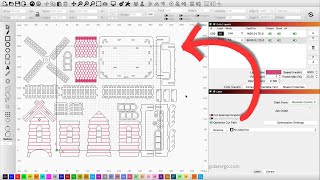
Working with Multi-Part Files in Lightburn (Tutorial)
5.2K views
xTool F1 Slide Extension Project Ideas
6.6K views
Wainlux K10 Mini Laser Engraving Machine Review & Demo
25.5K views
Set up Reminders Using LightBurn Job Checklists
2.2K views