Vigyata.AI
Is this your channel?

How to Order Layers in Lightburn

27.7K views· 629 likes· 4:10· Oct 9, 2023

🛍️ Products Mentioned (2)

In this video, you will learn how to order layers in Lightburn. ************ Website: https://golasergo.com/ Pinterest: https://www.pinterest.com.au/golasergo/ Facebook: https://www.facebook.com/golasergo/

About This Video

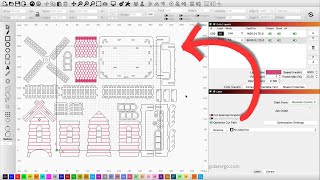
In this video I walk you through exactly how layer ordering works in LightBurn using the Cuts/Layers panel, because it can trip people up when you’re trying to get clean results. I start with a simple example: a circle with an “A” inside it. At first everything is on one layer, so I show you how I separate the cut from the engrave by changing the color of just the “A” so it lands on its own layer. Then I switch on Filled Rendering so you can clearly see what’s going to engrave (Fill) versus what’s going to cut (Line). From there, I explain the practical reason you nearly always want to engrave first and cut second: if you cut first, the piece can drop, shift, or tilt, and then your engraving is out of alignment. I show you how to reorder layers using the up/down arrows so the Fill (engrave) runs before the Line (cut), and you can confirm it in Preview. Finally, I answer a viewer question about running each item “one at a time” (engrave then cut each shape, then move to the next). I duplicate the design with the Array tool, and then I change Optimization Settings to use Order by Group. The key is making sure each individual design is grouped, so LightBurn treats each one as a unit and processes it in that engrave-then-cut sequence per group.

Frequently Asked Questions

🎬 More from Go Laser Go