
How to Turn Any Wi-Fi Router into an Access Point or Repeater | Step-by-Step Guide
🛍️ Products Mentioned (6)
#WiFiRouter #AccessPoint #Repeater #TechTutorial #WiFiRouter #AccessPoint #TechDIY #HomeNetworking #NetworkEnhancement I'll show you how to transform any Wi-Fi router, old or new, into an access point or repeater to extend your Wi-Fi signal. Whether you need a short-term solution or a long-term setup, this method will help you save money and make use of your existing hardware. Highlights: *Factory Reset: Learn how to reset your Wi-Fi router to its factory settings. *Configuration: Step-by-step instructions to set up your router as an access point using a mobile phone. *DHCP Settings: Understand the importance of disabling DHCP to avoid network conflicts. *Speed Test: See the performance comparison and verify your setup works. Subscribe for more practical tech tips, and hit the like button if you find this video useful. If you have questions or want to share your setup, drop a comment below! Amazon Affiliate Links: TP-Link AC1200 WiFi Extender: https://amzn.to/3XUeTIH Anker USB C Hub 8 in 1 https://amzn.to/3QOeuTM Anker USB C to Dual HDMI https://amzn.to/44FIgjz StarTech.com USB 3.0 to Dual HDMI Adapter: https://amzn.to/3QHWpGT These are fast-selling products through our Amazon affiliate links, check them out and help us earn a small commission when you purchase products through our links. Thank you! Visit my Website: https://torogipro.com/ HELP ME MAKE A DREAM OF 500,000 SUBSCRIBERS 📖Disclaimer: All contents provided by this channel are meant for EDUCATIONAL purposes only. BUY me a coffee: https://paypal.me/torogipro ▬▬▬▬▬▬▬▬▬▬▬▬▬▬▬▬▬▬ Follow me on social media: Facebook: https://www.facebook.com/Ginard.Guaki Linkedin: https://www.linkedin.com/in/ginardguaki/ Twitter: https://twitter.com/ginard_guaki ☑️For business inquiries, gifts, collaborations, PR packages & sponsorship: Email at: ginard09395611387@gmail.com ▬▬▬▬▬▬▬▬▬▬▬▬▬▬▬▬▬▬ Please don't forget to LIKE, SHARE, AND SUBSCRIBE. Let us Keep the love and support burning. Love you all. 😍😘
About This Video
Frequently Asked Questions
🎬 More from Torogi Pro
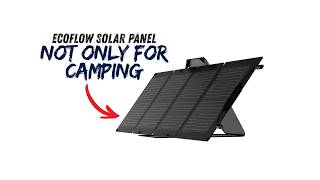
Maximize Your EcoFlow 110W Solar Panel — Not Just for Camping (Save Some Bucks)
534 views
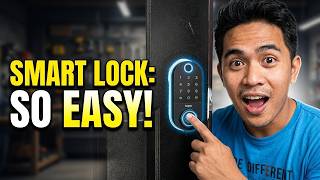
DIY Smart Lock Installation TP-Link Tapo DL110 Full Setup
663 views
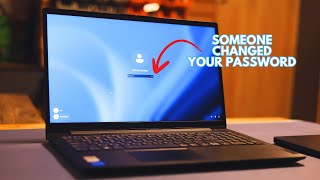
Forgot Your Windows 10/11 Password? Here's How to Get Back In Immediately (2026)
1.9K views

This iPhone App Exists… And Almost Nobody Uses It
1.0K views
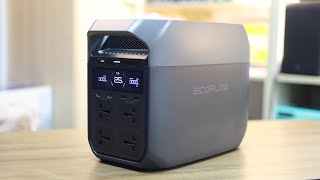
EcoFlow Delta 3 Unboxing | Everything Inside & Key Features
997 views
Windows Forces Internet? Here’s How to Set It Up Offline
2.2K views