
How to Use Brevo HTML Editor for Custom Email Design
🛍️ Products Mentioned (2)
✅ Sign up for Brevo (Exclusive Discount): ➡️ https://get.brevo.com/p331c4mfs87p Claim Your Exclusive Bonuses: https://www.productiveroad.com/Brevo Learn how to use Brevo HTML editor to create custom email designs and templates. This tutorial shows how to edit HTML, build responsive emails, and customize layouts. Perfect for advanced email design and marketing in Brevo. If you like this video, consider SUBSCRIBING 😊 For business inquiries, feel free to mail me at speakaboutdigital@gmail.com (For business inquiries)! #SpeakAboutDigital Thanks for watching and enjoy! The description of this video contains affiliate links, which means that if you buy one of the products that I recommend, I’ll receive a small commission without any additional cost for you. This helps support the channel and allows me to continue making videos like this. Thank you for your support! All the information presented in our videos is compiled from in-depth research and our own experiences. Thank you for watching!
About This Video
Frequently Asked Questions
🎬 More from Speak About Digital
How to Build an Email Funnel in Brevo Step by Step Tutorial
14 views

How to Manage and Analyze Reports in Brevo
5 views
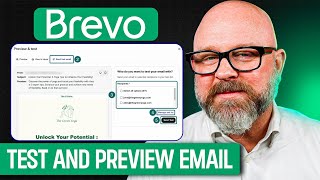
How to Test and Preview Emails in Brevo Step by Step Tutorial
20 views

How to Sell Digital Products Using Brevo Automations
9 views
How to Segment Your Email List in Brevo
4 views

How to Automate Your Email Marketing with Brevo
16 views