
Grandstream GDMS Setup from Scratch (Full Walkthrough) | Part 1
🛍️ Products Mentioned (6)

2026 Big Sale Event 3/25 - 3/31 - Get 20% off the F4-425 Plus
Goo Product
Tony A Coffee
PayPal
Earn $100 Cloud Credits from Digital Ocean by signing up at
Amazon Affiliate Storefront
2026Learn how to set up GDMS from scratch in this complete step-by-step guide. In Part 1 of this 3-part series, we build a full cloud-managed network using Grandstream GDMS Networking. You’ll learn how to create your account, navigate the interface, build your first network, and add devices both manually and using the mobile app. We also configure the LAN (gateway, DHCP, DNS) and set up your first WiFi network. Devices used in this video include the Grandstream GCC6010, Grandstream GWN7665, and Grandstream GWN7811P. The GWN App is used for quick device onboarding and is available on both iOS and Android. 👉 What’s Next in the Series: • Part 2 – VLANs (IoT Network + WiFi) • Part 3 – Firewall Rules & Security 00:00 What This GDMS Series Covers (Part 1 Overview) 00:15 Why I Made This Series (Viewer Request) 00:42 Sponsor: TerraMaster NAS Sale (March 25–31) 02:06 Create Your GDMS Account (Step-by-Step) 03:51 First Login & GDMS Overview Tour 04:36 GDMS Web Interface Walkthrough 07:25 Create Your First Network 09:16 Adding Devices to GDMS 10:04 Add Device Manually (Switch) 11:04 Add Devices with GWN App (Scan Method) 13:28 Configure LAN Settings (Gateway, DHCP, DNS) 16:01 Configure Wi-Fi (SSID, Security, Bands) 17:45 Recap + What’s Coming in Part 2 (VLANs) 2026 Big Sale Event 3/25 - 3/31 - Get 20% off the F4-425 Plus: https://www.amazon.com/dp/B0FLHTF2PQ?maas=maas_adg_A8571930B7C7328C2A254913A70025B3_afap_abs&ref_=aa_maas&tag=maas Share this video - https://youtu.be/-yD7V5x_Ub4 Subscribe to this channel - https://goo.gl/dRbTqD Channel Support: Buy Tony A Coffee - https://www.buymeacoffee.com/quiktech PayPal - http://paypal.me/quiktechsolutionsllc Earn $100 Cloud Credits from Digital Ocean by signing up at: https://m.do.co/c/41d68f5e11bd Amazon Affiliate Storefront: https://www.amazon.com/shop/quiktechsolutionsl.l.c Disclaimers: This video is not made for or intended for kids. I participate in the Amazon Affiliate/Influencer Program. When purchasing using my Amazon Affiliate links, your price doesn't change. You pay the same, but I do get a small percentage of the sale in commission. This helps the channel to continue creating content you enjoy viewing. All images used in this video are my own or taken from pixabay.com. About Tony: I am a retired educator of 32 years. I started out as an instrumental music teacher and evolved into technology support. After many years of providing technology support to teachers and students, the last ten years of my career, I was in a leadership position of Technology Coordinator and also Supervisor of Technology. My passion has always been helping people. I hope to continue helping people through my YouTube channel. Contact Tony at: quiktechreview@gmail.com Follow me on: Twitter @quiktechreview Facebook @quiktechsolutionsllc Instagram @quiktechsolutionsllc Hope you enjoyed this video. Please subscribe, like, & share. #Grandstream #GDMS #NetworkSetup #WiFiSetup #CloudNetworking #Homelab #SysAdmin #NetworkingTutorial #ITSupport #VLAN
About This Video
Frequently Asked Questions
🎬 More from Quik Tech Solutions L.L.C
Saturday Afternoon LIVE
160 views
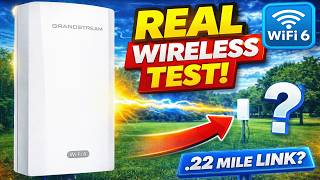
Real Outdoor Test: Does the GWN7302 Wireless Bridge Deliver?
241 views
Saturday Afternoon LIVE | 1 Hour Earlier
263 views
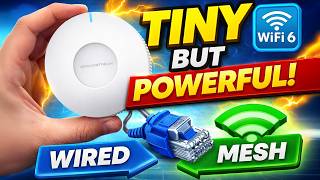
Tiny But Powerful: Grandstream GWN7660EM Setup (Wired + Mesh)
457 views
Saturday Afternoon LIVE
254 views
👉 This WiFi 6 Access Point Plugs Straight Into the Wall
328 views