
Yamaha DGX Series (650) Advanced Setup Tutorial — Smart Chord, MIDI & Multi-Track Recording
In this video, we dive into the advanced setup of the Yamaha DGX Series (650), covering Smart Chord, MIDI, and Multi-Track Recording to help you get the most out of your keyboard. This video is a continuation of our previous basic setup tutorial, where we covered voices, styles, recording, and transpose. Now, we go deeper into advanced features and pro-level functions designed for musicians who want to go beyond the basics. Watch the basic Set up tutorial Here https://youtu.be/PPrJa7ZHHJ0?si=C9djdvnS_8WvMmHL Watch How to play USB audioloops here https://youtu.be/NHDBOk7Jjwk?si=8HJw7tvKfKHog67q Watch Yamaha dgx 650 full sound demo https://youtu.be/vQ98fJxSBLs?si=re2nkYnxFIu-6p79 🎼 Great for: 🎤 Singers adjusting song keys ⛪ Worship and live players 🎸 Bands and arrangers 🎧 Home studio & content creators 🎹 Pianists exploring pro features 🔥 *Advanced Features You’ll Master ✅ Demo sound and tone exploration ✅ Auto power & power-saving optimization ✅ Portable Grand (instant piano mode) ✅ Pitch Bend for expressive control ✅ AUX input setup & leveling with external audio sources ✅ Registration memory & advanced bank saving/recall ✅ Music Database (one-touch style matching) ✅ Metronome time signature & bell sound control ✅ Smart Chord system ✅ Harmony types and variations ✅ Style Recommender for accompaniment discovery ✅ Turning OFF internal tracks in Song Mode ✅ Playing audio loops via USB ✅ Viewing score & lyrics on keyboard display ✅ Lesson modes: Waiting, Tempo & Minus One ✅ Grade feature for practice tracking ✅ Multi-Track recording and song layering ✅ Resetting keyboard to default ✅ Using as MIDI keyboard + Local ON/OFF + PC Mode ✅ Other function and system settings #YamahaDGX650 #YamahaDGXSeries #KeyboardSetup Don’t forget to subscribe for more tips on Kontakt, sound libraries, and other audio production tools! If you found this video helpful, drop a like and comment on which issue you were able to fix! Time stamp 00:00 - 00:18 - Introduction (advanced Section) 00:18 - 00:51 - Demo Sounds 00:51 - 01:41 - Auto Power 01:41 - 02:31 - Portable Grand 02:31 - 02:53 - Pitch Bend 02:53 - 04:08 - Aux input & Aux in Level 04:08 - 06:01- Advanced Bank Registration 06:01 - 07:34 - Music database 07:34 - 09:00 - Metronome Time Signature, Bell Sound 09:00 - 10:50 - Smart Chord 10:50 - 11:57 - Harmony Types 11:57 - 13:58 - Style recommeder 13:58 - 14:59- Turning of Tracks in song mode 14:59 - 16:36 - How to Audio Loops 16:36 - 17:49 - Song Score & lyrics 17:49 - 19:35 - Lesson Mode - Waiting , Tempo and minus one 19:35 - 20:02 - Grade feature 20:02 - 24:09 -Song Multi Tracks Recording 24:09 - 24:18 - Score 24:18 - 24:39 - Reset the Keyboard to Default 24:39 - 26:56 - Midi keyboard & Local On & Off, PC Mode 26:56 - 34:31 - Other functions Settings 34:31 - 34:46 - Conclusion Yamaha DGX 650 advanced setup tutorial, DGX series registration memory banks, smart chord tutorial, harmony types explained, multi-track recording guide, MIDI keyboard mode, Local on/off settings, AUX input audio level, USB audio loops, style recommender guide
About This Video
Frequently Asked Questions
🎬 More from GMEEDIA_MUSIC
How to Make Afrobeats in 2026 | Full Beat Breakdown + Secret Sounds
45 views
Yamaha Motif In-Depth Tutorial | Voice Mode, Performance Mode, Arpeggio, Edit & MIDI (S90)
106 views
Yamaha S90 Workstation Complete Sound Demo | Does It Really Sound Better Than Montage 8?
629 views
SKY6604 Piano Setup Tutorial | How to Use Dual, Split,Transpose & Other Functions
55 views

Is the SKY6604 $329 Piano with Over 700 Voices Worth It? | Watch This Sound Demo Before You Buy
63 views
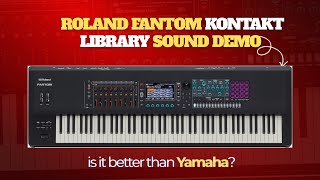
🎹 Roland Fantom Kontakt Library Sound Demo 🔥 Is This Better Than Yamaha?
537 views