
FL Studio IL Remote Performance Tab: Control Performance Mode with Your Mobile Device (Part 7)
🛍️ Products Mentioned (4)


In this video, we show you how to use the FL Studio IL Remote Performance Tab to control Performance Mode directly from your mobile device. Learn how to set up FL Studio IL Remote, connect your mobile device, and use the Performance Tab for seamless control over your music production and live performances. Key Features Covered: Setting up FL Studio IL Remote for mobile control Using the Performance Tab in FL Studio Controlling Performance Mode remotely for better workflow #FLStudio #ILRemote #MusicProduction IMPORTANT LINKS!!! [Piano Courses Links] 📌 Praise Tutorial(Highlife & worror) https://paystack.com/buy/praisetutorial 📌Free Piano Lessons https://youtube.com/playlist?list=PLLg0x52GSngxFgS4NUOLl0dosGEkjVjBk&si=K-1zwDtphAgwBwCo [Gospel Loop links] 📌 Premium loops package https://paystack.shop/gmeediamusicloops 📌 Free Gospel loops https://youtube.com/playlist?list=PLLg0x52GSngxMoutiOlG7c5TnHo_B8fZs&si=6PPJUr11zUU7Xt4K [Music Links] 📌 Apple Music https://music.apple.com/us/artist/gmeediamusic/1665499654 📌 Spotify Music https://open.spotify.com/artist/6M7KlON2GNgznPQinas3rh [Music Covers] 📌 Various Music covers https://youtube.com/playlist?list=PLLg0x52GSngydQOEikIKaxcm4ZZ3WJ5LE&si=0vT2k-sVmIfMg5UA [Music Gears| Product Reviews|Settings] 📌 Music Gears videos https://youtube.com/playlist?list=PLLg0x52GSngxKK-850Mo5MWyveIpGDchw&si=quFT3et-lh5YdUgn [Social Media Links] 📌Facebook: https://facebook.com/gmeediamusic 📌Instagram: https://www.instagram.com/gmeediamusic 📌 Tiktok: https://tiktok.com/gmeediamusic 📌 Business Inquiries: gmeediamusic@gmail.com FL Studio, IL Remote, Performance Mode, Mobile Control FL Studio, FL Studio Tutorial, Music Production, FL Studio Performance Tab, Remote Control Music Production, Live Performance FL Studio, FL Studio Tips
About This Video
Frequently Asked Questions
🎬 More from GMEEDIA_MUSIC
How to Make Afrobeats in 2026 | Full Beat Breakdown + Secret Sounds
45 views
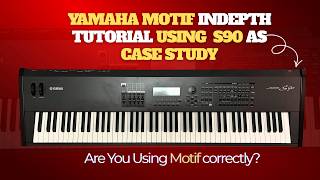
Yamaha Motif In-Depth Tutorial | Voice Mode, Performance Mode, Arpeggio, Edit & MIDI (S90)
106 views
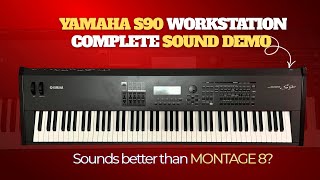
Yamaha S90 Workstation Complete Sound Demo | Does It Really Sound Better Than Montage 8?
629 views
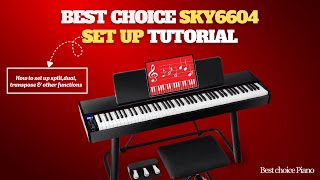
SKY6604 Piano Setup Tutorial | How to Use Dual, Split,Transpose & Other Functions
55 views
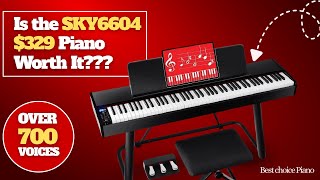
Is the SKY6604 $329 Piano with Over 700 Voices Worth It? | Watch This Sound Demo Before You Buy
63 views
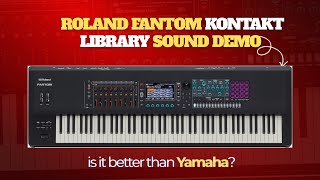
🎹 Roland Fantom Kontakt Library Sound Demo 🔥 Is This Better Than Yamaha?
537 views