
Get Started with Docs | Kiroku Tutorial
So you've created a personalised set of notes for your patient - but the paperwork doesn't end there. That's why we've created Kiroku Docs, which lets you turn your notes into a range of different letters, all in a matter of seconds. Plus, you can send them directly to your patient or to another dentist using our Tracked Docs feature, including collecting electronic signatures. Watch this video to see how to get started using Kiroku Docs - how to create a Doc from your notes, how to send or download Docs, how to edit them and save drafts, as well as how to edit your Docs templates. 00:00 What are Kiroku Docs? 00:21 Adding Docs templates from the Library 00:51 The Docs tab, drafts and sent Docs 01:06 Creating a Doc from Notes 01:38 Editing your Doc 02:12 Sending or downloading your Doc 02:58 Editing Docs Templates 04:33 Getting in touch for support
🎬 More from Kiroku
Adding Templates | Kiroku Tutorial
35 views
D4W and the Kiroku Chrome Extension | Kiroku Tutorials
36 views
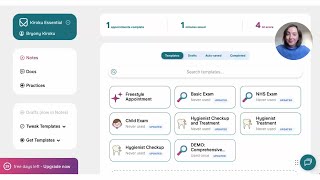
Quick Start Guide | Kiroku Tutorial
994 views

Advice for New Dental Graduates | Record Keeping, Risk & AI in Dentistry
27 views
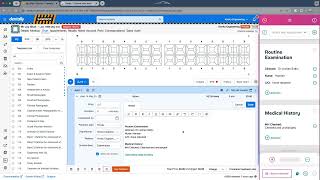
Kiroku Chrome Extension For Dentally And Any Cloud-based Practice Management Software
732 views
Edit Note Templates | Kiroku Tutorial
222 views