
D4W and the Kiroku Chrome Extension | Kiroku Tutorials
This video demonstrates how the Kiroku Chrome extension works inside Dental4Web. It shows opening a patient record and note field, using the Kiroku extension (available via the Chrome Web Store and also in Edge). It shows how you can reposition, pin, resize, and minimise the extension within the Dental4Web screen. 00:00 Opening the Extension in Dental4Web 00:46 Resizing and Pinning the Extension 01:20 Starting an Appointment Inside the Extension 01:35 Voice Dictation & Live Transcription 02:07 One-Click Insert Notes into Dental4Web
🎬 More from Kiroku

Adding Templates | Kiroku Tutorial
35 views
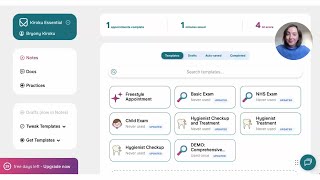
Quick Start Guide | Kiroku Tutorial
994 views

Advice for New Dental Graduates | Record Keeping, Risk & AI in Dentistry
27 views

Get Started with Docs | Kiroku Tutorial
188 views
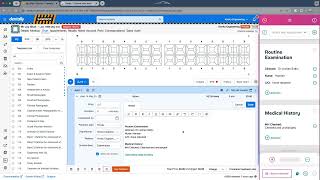
Kiroku Chrome Extension For Dentally And Any Cloud-based Practice Management Software
732 views

Edit Note Templates | Kiroku Tutorial
222 views