NotebookLM Update: Watch YouTube Sources Directly Inside Your Notebook
🛍️ Products Mentioned (1)
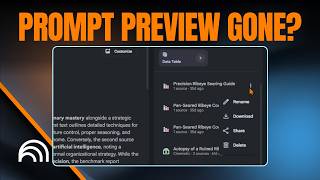
If you use Google's NotebookLM to research or study via YouTube videos, you know the previous workflow was slightly disjointed: you add a video source, but only get the text transcript. To actually see the visual context, you had to leave the app. In this video, I show the subtle but significant interface update: the ability to play YouTube video sources directly inside the NotebookLM interface. The NotebookLM Video Source Update: - The Discovery: I noticed that clicking on a YouTube source now loads an embedded player at the top of the "Source Guide," not just the text transcript. - The Workflow: 1. Add Source: Paste your YouTube URL as usual. 2. The View: Click the source to see the new split view: video player up top, transcript below. 3. The Reality Check: Diving into the settings to confirm a crucial limitation: while you can watch the video, the tool is still only "reading" the transcript text for its answers. This update streamlines the human side of the research process, even if the AI functionality is still text-based (for now). ➡️ Level Up Your AI Skills: Ready to move past single hacks to full mastery? Apply for our Next-Level AI Workshop today! https://thoughtsbrewing.com/en-us/next-level-ai-workshops ➡️ Subscribe to Thoughts Brewing: https://www.youtube.com/@thoughtsbrewingllc #NotebookLM #GoogleAI #Productivity #thoughtsbrewing #aiquicktips Timestamps 0:00 - Intro: The New Video Playback Feature in NotebookLM 0:30 - Locating the YouTube Source in Your Notebook 1:10 - Demo: Playing the Video Inside NotebookLM 1:40 - The Limitation: Viewing vs. AI Processing 2:06 - Confirming the Data Source (Text Transcript Only) 2:24 - Keep an Eye on Updates Keywords NotebookLM, NotebookLM update, NotebookLM YouTube, YouTube in NotebookLM, Google NotebookLM, AI note taking, NotebookLM tutorial, Google AI, NotebookLM features, AI research tools, Google AI tools, AI Quick Tips, Thoughts Brewing, Damien Griffin, Play YouTube Videos in NotebookLM