How to Share Information Between NotebookLM Notebooks
🛍️ Products Mentioned (3)
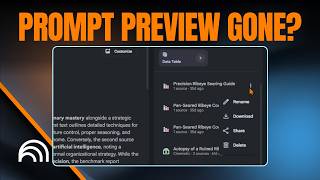
NotebookLM notebooks are isolated by design, which is great for focus but a nightmare when you need to connect the dots across different projects. If you've ever felt like your research is trapped in separate silos, you aren't alone, because (currently) there is no simple "send to" button in the current UI. I'll show you two ways to break the silo. Whether you want to use the Gemini interface to query your entire library or use the "Briefing Doc Loop" to move specific data into a new workspace, these steps ensure your AI actually remembers what you’ve already taught it. The Cross-Notebook Blueprint: - The Gemini Bridge: Use the "Add Files" (+) icon in Gemini to select multiple NotebookLM notebooks as active sources for a single prompt. - The Artifact Export: Generate a "Briefing Doc" or custom report within your primary notebook to summarize the core data. - The Google Doc Hand-off: Export that report directly to Google Docs via the ellipsis menu to create a permanent, portable file. - The Source Re-Import: Open your target notebook and upload that same Google Doc as a new source to "seed" the second notebook with the first one's insights. Things to consider: - Google is notorious for changing the UI and removing favorite features like the old FAQ tool (workaround → https://youtu.be/vXgptSAPTeo?si=USTN3W7Ur2tNb7Ff). - While the export-to-Docs method works now, remember that every time you summarize and re-upload, you lose a bit of the raw context from the original sources. - If you have hundreds of sources, you might hit context window limits where the report just silently fails without an error message. 🌟 Request a video on an AI workflow you're stuck on: https://thoughtsbrewing.com/en-us/youtube-video-request-page?utm_source=youtube #NotebookLM #AIWorkflows #ThoughtsBrewing #AIQuickTips ➡️ Level up at our Next-Level AI Workshop: https://thoughtsbrewing.com/en-us/next-level-ai-workshops?utm_source=youtube ➡️ Subscribe: https://www.youtube.com/@thoughtsbrewingllc ➡️ Get the blog newsletter: https://thoughtsbrewing.com/en-us/blog-subscription?utm_source=youtube Timestamps 0:00 - How can I share info between NotebookLM notebooks? 0:29 - How do you use Gemini to query multiple notebooks? 1:30 - How do you export a NotebookLM source to Google Docs? 3:55 - How do you re-import an artifact into a new notebook? 5:05 - Recap: How to share info between NotebookLM notebooks Keywords NotebookLM tutorial, share information between notebooks, Google NotebookLM sharing, cross-notebook search, Gemini NotebookLM tool, AI research workflow, NotebookLM artifacts, export NotebookLM to Google Docs, NotebookLM limitations, Thoughts Brewing, AI Quick Tips, Damien Griffin, NotebookLM, NotebookLM tutorial, Google NotebookLM, Google AI