
How to Install Kali Linux in VirtualBox (2026.1 Edition)
🛍️ Products Mentioned (3)

In this video I will show you How to Install Kali Linux 2026.1 Edition in VirtualBox on ALL Windows Computer using Prebuilt Virtual Machine and Installer ISO. #installkalilinux #kalilinux #virtualbox Download VirtualBox: https://virtualbox.org/wiki/Downloads Download Kali Linux 2026.1: https://kali.org/get-kali/ JOIN OUR COMMUNITY Discord Server: https://discord.com/invite/MFrw5QNkgW Instagram: https://instagram.com/teema.everythingtech/ TikTok: https://tiktok.com/@teema.everythingtech For Partnership, Promotions and Sponsorship Message: teema.everythingtech@gmail.com Music: Bensound License code: UAGWTMXBCWFZARWW Artist: : Benjamin Tissot
About This Video
Frequently Asked Questions
🎬 More from Everything Tech

How Strong is Your Password... Really?
133 views
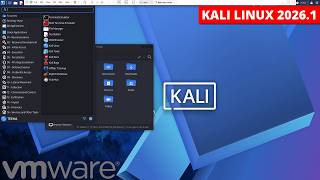
How to Install Kali Linux in VMware (2026.1 Edition)
350 views

Best Linux Distro for Gaming in 2026
1.3K views

How to Recover Deleted Files on SD Card, Hard Drive
163 views
How to fix: A media driver your computer needs is missing on Windows 10/11
2.1K views
How to Install macOS on any Windows PC
5.5K views