
Master Smooth Animations in Adobe Premiere Pro 2026
🛍️ Products Mentioned (1)
Master Smooth Animations in Adobe Premiere Pro 2026 Want to master smooth animations in Adobe Premiere Pro 2026 and finally make your edits look clean, cinematic, and professional? In this tutorial, I’ll show you exactly how to create smooth animations in Premiere Pro using simple but powerful techniques that instantly level up your videos. This Premiere Pro smooth movement tutorial is perfect for beginners and intermediate editors who want better animations in Premiere Pro without complicated plugins. You’ll learn how professional video editing in Premiere Pro is done by understanding keyframes, motion blur, and velocity curves. These advanced Premiere Pro animation techniques are what separate basic edits from high-quality, eye-catching content. We’ll dive into the Premiere Pro Effects Controls panel and break everything down step by step, so you fully understand how animation works. You’ll also learn the best Premiere Pro drop shadow settings to give your graphics depth and a more dynamic 3D feel. On top of that, I’ll show you how to make smooth transitions in Premiere Pro using proper easing and curve adjustments for natural motion. If you’re into YouTube editing in Premiere Pro 2026, this guide will help you create more engaging videos that keep viewers watching. Whether you’re editing gaming content, tutorials, vlogs, or motion graphics, these techniques will instantly improve your workflow and results. This Premiere Pro motion graphics tutorial focuses on clean, modern animation styles that are widely used by top creators. To save time, I’ll also show you how to create animation presets in Premiere Pro, so you don’t have to rebuild your animations from scratch every time. Once you understand the system, you’ll be able to create smooth, consistent animations in just a few clicks. By the end of this video, you’ll confidently master smooth animations in Adobe Premiere Pro 2026 and know exactly how to create polished, professional-level motion inside your projects. If you’re ready to upgrade your editing skills and stand out with smooth, high-quality visuals, this tutorial is for you. 👉❤️ Support Me: https://buymeacoffee.com/epicguide 📧 Contact Me: hirelimon@gmail.com 🔗 Links and Resources: 🙏Thanks for watching this video 📺 If you want to see more videos from Epic Content then please 🆂🆄🅱🆂🅲🆁🅸🅱🅴 and press the bell 🔔 icon to turn on all notifications! So you don't miss all the new videos we publish. 👍If you liked our videos then be sure to like them. 💬 Please tell us your opinion in the comments below. We respond to everyone! 🔗Please share this video if you found value in it and think it can help other people. 👁️If you enjoyed watching this video then check out our playlists for many more videos. 🔴Screen Recorded 📝Scripted, 🎙️Narrated, and ✂ Edited by Epic Content Team. 🎬 This video is for educational purposes only. ⚠️ This channel is for educational purposes only. All posted content is to add value to the viewers. We own licenses and permissions for all the content used in this video.
🎬 More from Learn with Limon
The Smoothest Jump Cuts Ever in Davinci Resolve | Smooth Jump Cuts in Davinci Resolve 2026
52 views
How to Use Variable Data, Text and Images in Adobe Photoshop 2026
365 views
Headphones vs. Computer Speaker - Checking Audio Settings in Zoom 2026
7 views

How to Find Federal Government Jobs in the US 2026
22 views
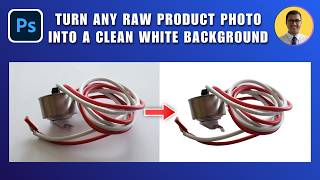
How to Turn Any Raw Product Photo into a Clean White Background 2026 | White Background in Photoshop
27 views
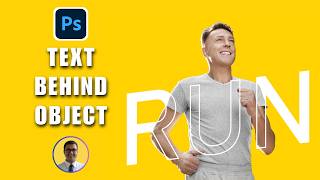
How to Add Text Behind an Object in Photoshop 2026 | Place Text Behind Object & Make It Transparent
18 views