
Windows Recovery USB - How to Create Windows Recovery Drive and Restore PC Computer Operating System
🛍️ Products Mentioned (11)
Windows 8 Recovery ISO
Windows 10 Recovery ISO
details and sign up
Canon EOS M6
Canon EF-M 22mm f/2 Lens
Tokina 11-16mm Wide Angle Lens
Fotodiox EF to EOS M Lens Adapter
Comica CVM-WM300A Wireless Microphones
Aputure Amaran AL528W LED Light
Kamerar SD-1 Camera Slider
AVermedia HDMI Game Capture Module
Windows Recovery USB - How to Create Windows Recovery Drive and Restore PC Computer Operating System Windows 8 Recovery ISO: https://www.microsoft.com/en-us/software-download/windows8ISO Windows 10 Recovery ISO: https://www.microsoft.com/en-us/software-download/windows10 Save Money on YouTube TV! New Members GET $10 OFF YOUTUBE TV BASE PLAN! Click here for details and sign up: https://tv.youtube.com/referral/r257rjwr3bizy6 In this video, I'll show you how to create a Windows USB recovery drive and explain step-by-step how it's used to restore or reinstall a Windows operating system on a PC. You can actually make the recovery USB drive from any working Windows computer. It doesn't matter if it's a PC at home or from your workplace. I need to start on a fully functioning Windows desktop or laptop. And I'll need a USB flash drive with at least 8GB of space. First, plug the flash drive in before continuing. Now I'll do a search for Recovery and click on the Recovery app when it pops up. Then click on Create a Recovery Drive and click Yes to allow changes on this computer. On the next screen, there should be a check mark where it says Copy the Recovery Partition from the PC to the Recovery Drive. If this option is greyed out, that means this computer doesn't have a recovery partition. And if that's the case, I'd have to download the recovery files online from Microsoft. I've provided download links here in the description for Windows 8 and 10 recovery files for you to save onto your flash drive if needed. For me, I'm able to continue right on my computer so I'll click Next. On the following screen, I can see my USB drive is ready since it's already plugged in. So I'll just click Next. Before continuing, remember that all the data on the flash drive will be deleted when the recovery drive is created. So backup important files before moving on. Mine is a blank USB drive so I'll click Create. And that's you have to do to make a Windows USB recovery drive. Using a Windows recovery USB drive should fix most PC problems. My computer should definitely have no problems after I use it to restore the Windows operating system. And now I have a fresh Windows computer that's functioning like normal! If this video was helpful please give me a thumbs up and hit the subscribe button to stay up to date on all my weekly videos! Disclaimer: As an Amazon Associate I earn from qualifying purchases. ****Equipment I Use For My Videos**** Canon EOS M6: https://amzn.to/2pwQ0Vq Canon EF-M 22mm f/2 Lens: https://amzn.to/31mLfLq Tokina 11-16mm Wide Angle Lens: https://amzn.to/33TFaYH Fotodiox EF to EOS M Lens Adapter: https://amzn.to/31u3AGq Comica CVM-WM300A Wireless Microphones: https://amzn.to/31tbiAD Aputure Amaran AL528W LED Light: https://amzn.to/2VRuwyK Kamerar SD-1 Camera Slider: https://amzn.to/2VUB5Ax AVermedia HDMI Game Capture Module: https://amzn.to/31phsSp
🎬 More from TheRenderQ

How to Share YouTube TV with Family & Friends (Up to 5 People)
2.9K views
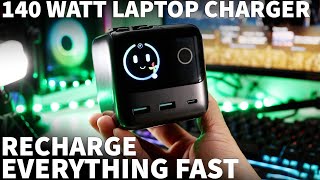
Joyroom Podix 140W Charger Review | Charge 5 Devices Fast with GaN Power
541 views

SoundPeats Clip1 Review | Open-Ear Clip-On Earbuds Under $100
527 views

HoverAir X1 ProMax FAQ | How It Works, Tips & Beginner Questions Answered
756 views

HoverAir X1 ProMax | 8K Drone That Follows You (No Controller Needed)
3.8K views

Monument Grills Denali 425 Review + Teriyaki Chicken Cook Test | Powerful Affordable Feature-Packed
681 views