
How to Create and Use Hot Corners on a Mac – Boost Productivity
🛍️ Products Mentioned (1)
Buy on Amazon: https://amzn.to/3NlbVrd *Use the above affiliate links to check out the latest deals on tech products. If you make a purchase, you help support our channel through a small commission at no extra cost to you. Thanks so much! We can review your products on our channel. Contact us here for business partnerships: techtalkaccess@gmail.com 💻 Want to make your Mac even more efficient? In this video, we’ll show you how to create and use Hot Corners on your Mac to streamline your workflow and make navigating your desktop a breeze. Hot Corners allow you to quickly access certain actions and functions with a simple movement of your mouse, boosting your productivity in a way that you never thought possible. 🖱️ We’ll guide you step-by-step through the process of setting up Hot Corners, explaining what each corner can do—from launching apps to showing the desktop or even activating Mission Control. You’ll learn how to customize these actions to suit your needs, and we’ll also share some pro tips for using Hot Corners effectively in your day-to-day tasks. 🌟 💥 What You’ll Learn in This Video: How to enable Hot Corners on your Mac 🖥️ Customizing Hot Corners for different actions 🧰 How to use Hot Corners to improve your productivity 📈 Pro tips for using Hot Corners with other macOS features 🏆 Fixes and troubleshooting for Hot Corner-related issues 🔧 👍 Found this tutorial helpful? Hit that like button 👍, subscribe 🔔 for more macOS tips and tricks, and leave a comment below with your thoughts or any questions about Hot Corners! Let’s talk about Mac productivity! 💬 🔧 Hashtags: #HotCorners #MacOS #MacTips
About This Video
Frequently Asked Questions
🎬 More from Tech Talk

Best Wedding DJ Audio Mixer Sound Board! Zenolix Review
112 views
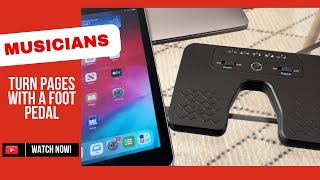
Why Every Musician Needs This Budget Pedal Tool (Better Than Paper!)
423 views

The Only Sound Machine You Need for Travel: Dreamegg Pocket Sleep
290 views
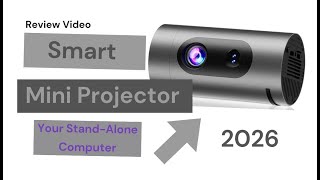
I Turned My Wall Into a Theatre Using This Budget Projector
337 views
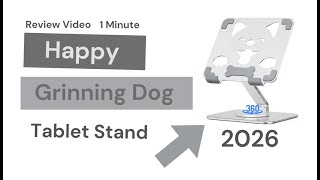
I Didn’t Think a Stand Could Rotate Like This Until I Tried It
103 views
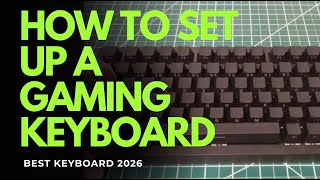
This Wireless Mechanical Keyboard Changed My Setup
205 views