
Capcut- How to Add Text To Your Video
🛍️ Products Mentioned (1)
Buy Tech on Amazon: https://amzn.to/3NlbVrd *Use the above affiliate links to check out the latest deals on tech products. If you make a purchase, you help support our channel through a small commission at no extra cost to you. Thanks so much! We can review your products on our channel. Contact us here for business partnerships: techtalkaccess@gmail.com #capcut #capcutedit #capcuttutorial
About This Video
Frequently Asked Questions
🎬 More from Tech Talk

Best Wedding DJ Audio Mixer Sound Board! Zenolix Review
112 views
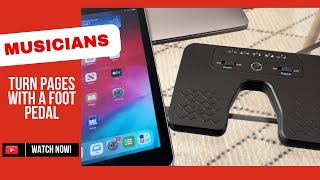
Why Every Musician Needs This Budget Pedal Tool (Better Than Paper!)
423 views

The Only Sound Machine You Need for Travel: Dreamegg Pocket Sleep
290 views
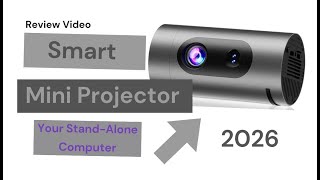
I Turned My Wall Into a Theatre Using This Budget Projector
337 views
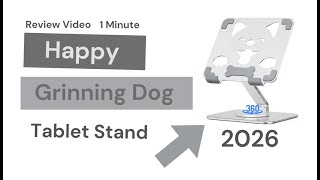
I Didn’t Think a Stand Could Rotate Like This Until I Tried It
103 views
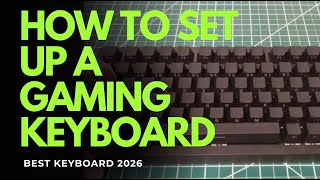
This Wireless Mechanical Keyboard Changed My Setup
205 views