
Self-Hosted VPN Made Easy! OpenVPN Setup Guide for PFSense
Self-hosting your own VPN service from home has never been easier. This guide will walk you through the full setup and configuration process using OpenVPN within PFSense. This is perfect for traveling or other cases for when you find yourself connecting to a public wireless network. Secure your traffic with OpenVPN. Featured Products: (affiliate links) (none) Chapters: 00:00 Introduction 01:14 OpenVPN Wizard 07:44 Firewall Rules 08:34 User Credentials 09:14 Exporter Tool 10:24 Android Setup 11:19 Conclusions Contact Info: Business email is lithiumsolardiy@gmail.com. I am not available for personal project questions or consultation. Disclaimers and Statements: ► I receive a small commission on purchases made using my affiliated links shared the video description and comments section. The views and opinions expressed here are my own, unbiased, and not influenced by this commission in any way.
About This Video
Frequently Asked Questions
🎬 More from Home SysAdmin

Supermicro 45-Bay JBOD Disk Shelf Upgrade, Running 105 Hard Drives
11.3K views
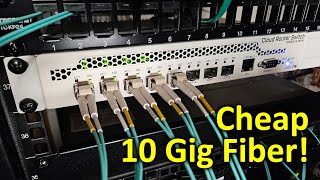
Cheap 10Gig Fiber with Mikrotik CRS309-1G-8S+IN Network Switch, Setup Guide
36.3K views

Building a Storj Node and Migrating Existing Contents, FUN HomeLab Project
6.8K views

HomeLab Update: Full Rack, Proxmox, New PFSense, Chia Farm, and FAST Internet
14.8K views

Rebuilding the Chia Farming Server with Dual RTX A4000 GPUs
7.7K views

LSI 9207-8e SAS Controller Firmware Update Procedure, P20 IT Mode
13.3K views