
Don't Buy A Server
🛍️ Products Mentioned (2)
Upgrade to Windows 11 Pro with Keysfan (Sponsor) To use Hyper-V, you'll need Windows 11 Pro! Thanks to this video's sponsor, Keysfan, you can get a genuine, lifetime license for a massive discount. Get 50% OFF Windows 11 Pro (Only $14.99!) with code: BLT50 Windows 11 Pro Key: https://www.keysfan.com/windows-11-professional-key.html?ksf=blt88 Get 62% OFF Microsoft Office with code: BLT62 Office 2021 Pro Plus Key: https://www.keysfan.com/microsoft-office-2021-professional-plus-key-1pcs.html?ksf=blt88 You don't need to buy expensive servers or a dedicated PC to start your homelab. Your existing Windows 11 desktop is already a powerful server, and in this video, I'll show you how to unlock its full potential. We'll break down the two best ways to start running homelab services right now, on your only PC. First, I'll show you the "easy mode" using Docker Desktop—a way to run apps like Uptime Kuma in minutes, with absolutely no Linux skills required. Then, for those who want to go to the next level, I'll show you the "pro mode" by enabling and configuring Hyper-V, the powerful virtualization tool built right into Windows 11. I'll walk you through every single step, from enabling the feature and setting up a virtual switch to installing and running two full Linux VMs (Ubuntu and NixOS) at the same time, all from your main PC. Stop waiting and start building. This is the fastest way to build your confidence and your homelab today. TIMESTAMPS: 00:00 - The Biggest Myth Holding You Back 00:29 - The One Requirement (Windows 11 Pro) 00:39 - Sponsor: Upgrade to Windows 11 Pro 02:04 - Method 1: The "Easy Mode" (Docker Desktop) 02:45 - Demo: Running Uptime Kuma in 2 Minutes 04:02 - Method 2: The "Pro Mode" (Hyper-V) 04:41 - Hyper-V vs. VirtualBox: What's the Difference? 05:02 - How to Enable Hyper-V in Windows 11 05:28 - CRITICAL STEP: Create a Virtual Switch 06:10 - Configure Hyper-V Settings (VM Storage) 07:03 - How to Create Your First VM (Ubuntu Demo) 08:10 - IMPORTANT: VM Settings to Change (Secure Boot) 09:09 - We're Running 3 OSes at Once! (NixOS Demo) 09:40 - You Don't Need Another PC! 09:50 - The Next Level (My VPS Teaser)
🎬 More from Bob Loves Tech
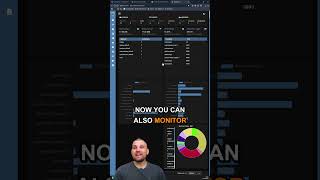
Dockwatch Docker Monitoring Tool #homelab #selfhosted #docker #proxmox
411 views
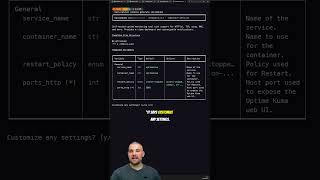
Stop Hunting for Docker Compose Files
272 views

If You’re the Family IT Guy, You Need Twingate
235 views
This upgrade turns my 12 Year Old Mac Mini into a Homelab Powerhouse #macmini #macupgrade
546 views
I stumbled across this absolute bargain! #techtok #homelab #macmini
1.1K views
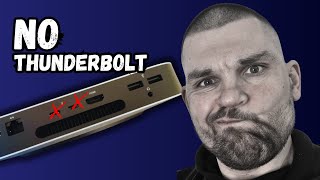
Mac Mini M1 Homelab So Close To Perfection!
1.2K views