
Google Sheets Budget Tracker Tutorial (Beginner's Guide)
In this comprehensive, beginner-friendly tutorial, you'll learn how to create your very own simple yet powerful budget tracker using Google Sheets! Whether you're new to budgeting or just looking for an easy way to manage your finances, this step-by-step guide will walk you through everything you need to know. We'll cover: - Setting up your sheet with essential columns (Date, Description, Category, Income, Expense, Balance) - Using key formulas like SUM and Balance to track your money in real-time - Applying conditional formatting to visually distinguish income and expenses - Implementing data validation for consistent and easy category selection - Formatting your sheet for clarity and ease of use By the end of this video, you'll have a fully functional Google Sheets budget template that you can customize to fit your unique financial needs. Start your journey to financial clarity today! Don't forget to like, comment, and subscribe for more personal finance and Google Sheets tutorials! #GoogleSheets #BudgetTracker #spreadsheettutorial * This description contains affiliate links, which means—at zero cost to you—I will earn a small commission if you click through and make a purchase. Thank you for your support!
🎬 More from Jet Sy Traveling Designer

HOW TO MAKE CUT AND PASTE ACTIVITIES IN CANVA FOR TEACHERS
60 views

Design Your Own Digital Reading Journal | Canva Tutorial
95 views

DIY Undated Calendar with Hand Drawn Florals In Affinity V3
70 views
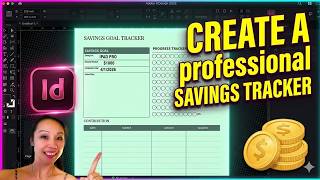
Create a Custom Savings Tracker to Print and Sell on any Marketplace (InDesign Tutorial)
104 views

How to Make a DIY Printable Bucket List in Under 5 Minutes | Affinity by Canva Tutorial
96 views

Canva Tablet Mockup Tutorial | Design Like a Pro in Minutes
115 views