
How to Use Motion Presets in Adobe Animate | Step-by-Step
Welcome to Blue Cube! In this step-by-step Adobe Animate tutorial, you’ll learn how to apply, edit, and save Motion Presets the fast, clean way. We’ll convert shapes to Movie Clip (F8), adjust timeline speed, edit the motion path, animate text, and save a custom preset you can reuse across projects. Beginner-friendly, with practical tips for intermediate users—no fluff. I hope you enjoy this tutorial. Thank you so much for watching :) ► TIMESTAMPS: 00:00 | Introduction 00:16 | Accessing Motion Presets 00:45 | Applying and Editing Presets 02:02 | Increasing and Decreasing Animation Speed 03:44 | Using Fly Presets with Shapes 06:03 | Combining Shapes and Text 07:43 | Searching for Presets 09:39 | Creating and Saving a Custom Preset 11:06 | Editing Custom Presets 13:43 | Importing and Applying a Saved Preset Full Adobe Animate playlist: https://youtube.com/playlist?list=PLzqmkBDuuGB2IrLNmPuqYO25RUehqX26x&si=FMpydf-pioFkdKeL 🔔 Don’t forget to enable notifications to stay updated with every new tutorial! #AdobeAnimate #MotionPresets #2DAnimation #BlueCube
🎬 More from Blue Cube
Smooth Mask Cut Out Transition in Premiere Pro | 2026
196 views
Smooth Zoom & Spin Transition in Premiere Pro (Fast & Cinematic)
119 views
Animated Glow Outline Effect in Premiere Pro (No Plugins)
867 views

How to Split Screen 4 Videos in Adobe Premiere Pro
428 views
Master Speed Ramping in Premiere Pro | Slow Motion, Fast Motion & Reverse
169 views
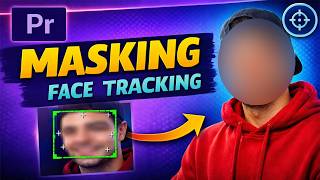
Premiere Pro Masking & Face Tracking | Blur Faces Like a Pro
381 views