
How to Animate a Flying Bird in Adobe Animate
Adobe Animate Tutorial: Learn step by step how to animate a looping flying bird in Adobe Animate. We’ll start by importing layered artwork from Illustrator, turning body and wings into symbols, setting precise pivot/anchor points, and rigging them with a simple parent–child hierarchy. Then we’ll create wing flap motion with Classic Tween, adjust timing and easing, duplicate birds into a flock, recolor them for variation, add a quick background, and preview the final loop. Whether you’re a beginner or already familiar with Animate, this guide will give you a complete workflow for simple character rigging and motion cycles. ► TIMESTAMPS: 00:00 — Intro 00:14 — Download a picture of a bird 00:48 — Import Illustrator Layers 01:51 — Break Apart 02:08 — Distribute to Layers 02:51 — Create Symbols (Body, Wings) 03:16 — Setting Anchor Points 03:57 — Parenting Layers 04:46 — Wing Animation 06:54 — Body Animation 07:53 — Converting to a Final Symbol 08:42 — Adding a Background and Flight Path 10:21 — Duplicating Birds Tips & Notes Keep wings as separate layers in Illustrator for easier animation. Always convert parts into Symbols (F8) to preserve transforms. Set correct rotation points before tweening. Use easing curves for natural wing flaps. Duplicate and recolor to create a flock quickly. 👉 Don’t forget to like, comment, and subscribe for more Adobe Animate tutorials! Full Adobe Animate playlist: https://youtube.com/playlist?list=PLzqmkBDuuGB2IrLNmPuqYO25RUehqX26x&si=FMpydf-pioFkdKeL #AdobeAnimate #ClassicTween #2DAnimation #BirdRig
🎬 More from Blue Cube
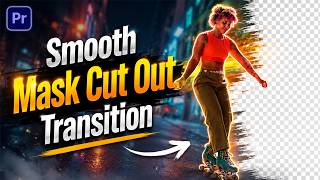
Smooth Mask Cut Out Transition in Premiere Pro | 2026
196 views
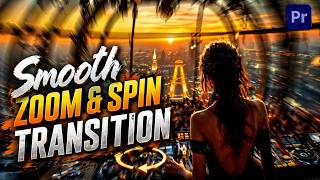
Smooth Zoom & Spin Transition in Premiere Pro (Fast & Cinematic)
119 views
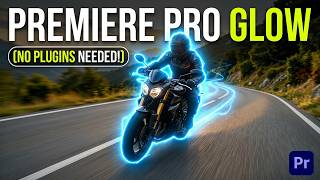
Animated Glow Outline Effect in Premiere Pro (No Plugins)
867 views

How to Split Screen 4 Videos in Adobe Premiere Pro
428 views

Master Speed Ramping in Premiere Pro | Slow Motion, Fast Motion & Reverse
169 views
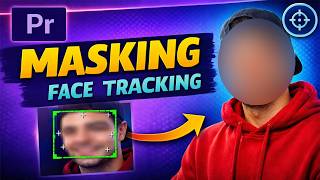
Premiere Pro Masking & Face Tracking | Blur Faces Like a Pro
381 views