
Adobe Illustrator Tutorial (5) | Selection tool and copy, cut, paste
In this tutorial, you will learn how to use the Selection tool and how to copy, cut and paste objects in Adobe Illustrator. The Selection tool is the most basic tool in Illustrator, and it is used to select objects on the artboard. Once an object is selected, you can move, resize, rotate, and transform it. You can also copy, cut, and paste selected objects. You can also paste objects into Illustrator from other applications, such as Photoshop and InDesign. To do this, simply copy the object in the other application and then paste it into Illustrator. ------------------------------------------- Illustrator training from beginner to advanced level is a comprehensive course that will teach you everything you need to know to use Adobe Illustrator like a pro. You'll learn about the basics of the interface, as well as more advanced techniques such as working with complex shapes, using masking and blending, and creating patterns and symbols. You'll also learn how to export your artwork for print or web. ------------------------------------------- Subscribe to see the next tutorials https://www.youtube.com/@blue-cube --------------------------------------- https://www.youtube.com/playlist?list=PLzqmkBDuuGB2JhT64PlqAVd06MPNui3AQ https://www.youtube.com/playlist?list=PLzqmkBDuuGB03mr8s2EANI_-F8bbgVC9o https://www.youtube.com/playlist?list=PLzqmkBDuuGB3V_ZSX_oLdUonHNqewb0oD ----------------------------------------- #tutorial #illustrator #adobe_illustrator_tutorial #adobe_illustrator
🎬 More from Blue Cube
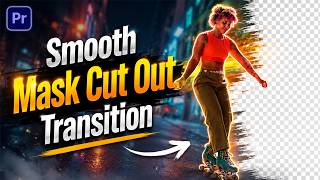
Smooth Mask Cut Out Transition in Premiere Pro | 2026
196 views

Smooth Zoom & Spin Transition in Premiere Pro (Fast & Cinematic)
119 views

Animated Glow Outline Effect in Premiere Pro (No Plugins)
867 views

How to Split Screen 4 Videos in Adobe Premiere Pro
428 views

Master Speed Ramping in Premiere Pro | Slow Motion, Fast Motion & Reverse
169 views

Premiere Pro Masking & Face Tracking | Blur Faces Like a Pro
381 views