
How to Edit NotebookLM Infographics Using Canva (FREE + Pro Methods)
🛍️ Products Mentioned (2)
🔥 NotebookLM creates amazing infographics… but there’s one big problem: you can’t edit them properly once they’re exported as PNG files. In this video, I’ll show you 2 simple ways to edit your NotebookLM infographics using Canva — including a completely FREE workaround and the proper Canva Pro method that gives you full control over your design. 🧠 Perfect for: • Work presentations • School projects • YouTube content • Social media posts • Client reports • AI workflows and more ▶️ Tools used in this video: • NotebookLM - https://notebooklm.google • Canva - https://www.canva.com 📺 Watch Next: How to Create Infographics with NotebookLM → https://youtu.be/_tjvBXgvBJM How I Build and Publish Websites for FREE Using Google Gemini + Netlify → https://youtu.be/UK2fqp4RJJg 🎥 Watch my AI Playlist – Smarter With AI: Tools to Save Time & Make Money → https://www.youtube.com/playlist?list=PLHQX109djrY1xZtc_Tj0YEvtxMFNX6CKr ⏱️ Timestamps: 00:00 Intro 00:57 Free Canva workaround 02:38 Canva Pro method 03:00 Grab Text 03:55 Magic Grab 04:26 Final thoughts 👍 If this video helped you, don’t forget to like and subscribe for more practical AI tutorials. 📩 Business inquiries → yuri.souza.mychannel@gmail.com 🔖 Tags: NotebookLM Infographic, Canva, Edit infographics
🎬 More from Yuri Souza

How I Build Real Websites for Free Using Google AI Studio – Part 3 (AI Chatbot + GitHub + Fixes)
3.2K views

How I Build Real Websites for Free Using Google AI Studio - Part 2
13.3K views
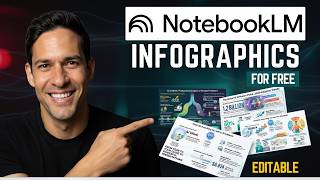
Create PROFESSIONAL Infographics with NotebookLM (Free & Easy)
1.1K views

RIP AI Subscriptions | This All-in-one is All You Need in 2026 (ChatLLM by Abacus AI)
3.1K views

Clone Any Voice for FREE & Unlimited (Local AI Setup)
4.6K views

How I Build and Publish Websites for FREE Using Google Gemini + Netlify
222.5K views