
How To Factory Reset Your Tesla Before Selling (Must-Do Checklist)
How To Factory Reset Your Tesla Before Selling (Must-Do Checklist) Thinking of selling or trading in your Tesla? Before handing over your Tesla, there are some critical steps you cannot skip to protect your personal data and subscriptions. In this video, I walk you through how to safely reset your Tesla so the next owner can start fresh, and you leave with peace of mind. I cover: ✅ Step 1: Factory Reset ✅ Step 2: Remove Tesla from Your App ✅ Step 3: Final Review Whether you own a Model Y, Model 3, Model X, or Model S, these steps are essential before selling or trading in your Tesla. If you found this helpful, like, subscribe, and hit the bell to stay up-to-date with all things Tesla. ✅ 𝐅𝐎𝐑 𝐁𝐔𝐒𝐈𝐍𝐄𝐒𝐒 𝐏𝐀𝐑𝐓𝐍𝐄𝐑𝐒𝐇𝐈𝐏𝐒, 𝐀𝐍𝐃 𝐒𝐏𝐎𝐍𝐒𝐎𝐑𝐒𝐇𝐈𝐏𝐒: ▶ ben.technologicallycurious@gmail.com ✅ 𝐈 𝐇𝐎𝐏𝐄 𝐘𝐎𝐔 𝐆𝐔𝐘𝐒 𝐄𝐍𝐉𝐎𝐘 𝐓𝐇𝐈𝐒! ▶ If you enjoy this video, please like it and share it. ▶ Don't forget to subscribe to this channel for more updates. ▶ Subscribe now: https://www.youtube.com/c/TechnologicallyCurious Tesla factory reset, reset Tesla before selling, how to reset Tesla, Tesla trade-in checklist, Tesla privacy tips, remove Tesla from app, sell Tesla safely, Tesla Model 3 reset, Tesla Model X reset, Tesla Model Y reset, Tesla ownership transfer, Tesla tips and tricks, Tesla app tutorial, EV selling tips, Tesla data security
About This Video
Frequently Asked Questions
🎬 More from Technologically Curious

15 Must-Have 2026 Tesla Model Y Accessories | Performance, Interior & Protection Upgrades
27.3K views

My First 24 Hours With the 2026 Tesla Model Y Performance (Not a Review) #Tesla
26.7K views

Inside the new 2026 Tesla Model Y Performance: Raw Reactions #Tesla
18.3K views

Why I’m Trading My Tesla Model X for a Model Y After 30,000 Miles
21.1K views
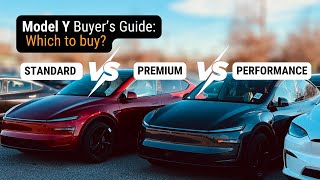
New Tesla Model Y Buyer's Guide: Standard vs Premium RWD & AWD vs Performance (Full Breakdown)
3.9K views

The 2026 Tesla Model Y Standard is NOT the Tesla you think it is… | #tesla review
1.8K views