
Step-by-step setup of Legacy & Recovery Contacts using a Mac Computer for your Apple Account
In this video I show, step-by-step, on a Computer, how to add both a Legacy Contact and Account Recovery Contact(s) to your Apple ID so your iPhone/iPad stays secure—and your digital legacy can be accessed by trusted people if something happens to you. We walk through Apple’s Digital Legacy feature, choosing a Legacy Contact, saving the Access Key, and setting up Recovery Contacts to help you get back into your Apple account if you’re locked out. Great for iCloud, Photos, Notes, and two-factor authentication protection. What you’ll learn: • What Apple’s Digital Legacy & Legacy Contact actually do • How to choose the right Legacy Contact and share the Access Key safely • How Account Recovery Contacts work for password/2FA lockouts • Step-by-step setup on iPhone (Apple ID, iCloud, Security) • Privacy, safety, and real-world best practices for families & caregivers Helpful terms: Apple ID, iCloud, Digital Legacy, Legacy Contact, Access Key, Account Recovery Contact, Two-Factor Authentication (2FA), iPhone, iPad, iOS settings, privacy, security, family sharing. Call to action: If this helped, like/subscribe and share with someone who manages family devices. #AppleID #iCloud #DigitalLegacy #iPhoneTips #Privacy #Security #LegacyContact #AccountRecovery Add Legacy & Recovery Contacts on iPhone: Secure Your Apple ID, iCloud & Digital Legacy Apple ID Security Guide: Set Up Legacy Contact + Account Recovery Contacts (iPhone/iPad) Protect Your Apple Account: Add a Legacy Contact and Recovery Contacts for iCloud Access iPhone Privacy & Safety: How to Add Legacy Contact + Recovery Contact to Your Apple ID Digital Legacy & Account Recovery: Step-by-Step Setup on iPhone/iPad (Apple ID & iCloud) Learn how to add a Legacy Contact and Account Recovery Contacts to your Apple ID. Protect your iCloud data, prepare your digital legacy, and make account recovery easier on iPhone/iPad with this step-by-step guide.
🎬 More from LinkedIn Support for Real-World Results

After Years on Quora, I'm Done
5 views

Rapport Sucks
6 views
LinkedIn & YouTube Strategy: 5 Tips for Small Business
14 views
ChatGPT: The Only Tutorial You Need to Get Started
53 views
DDCC SBC- Using YouTube & LinkedIn as Business Tools Webinar - 05/21/26 (AI Version)
17 views
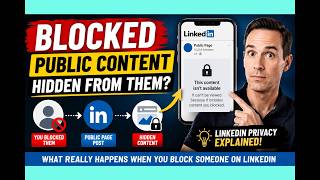
LinkedIn Blocking Broken? My Honest Test Results
18 views