
Set Any Audio as Your iPhone Ringtone (No GarageBand)
Want a quick way to make a custom iPhone ringtone—without iTunes or GarageBand? In this video, I show the exact steps I use to download an audio file, save it into the Apple *Files* app, preview it, and tap *Share → Use as Ringtone* to set it as my iPhone ringtone in minutes. What you’ll learn: * How to download an audio file on an Apple iPhone * Where to save it in the Apple *Files* app * How to find the file and tap *Share* * Choosing *Use as Ringtone* to set it instantly * Tips for keeping your ringtone short and loud enough Why this method: * 100% on iPhone * No computer needed * No GarageBand or iTunes * Super fast and repeatable Pro tips: * Trim your audio beforehand so the best part plays right away * Keep volume consistent to make the ringtone punchy * Name your file clearly so it’s easy to find later If this helped, tap *Like*, *Subscribe*, and drop a comment with the song/sound you used! Set Any Audio as Your iPhone Ringtone (No GarageBand) iPhone Ringtone in Minutes: Download → Files → *Use as Ringtone* Make a Custom iPhone Ringtone From Any Audio (Fast & Easy) How to Download Audio & *Use as Ringtone* on iPhone iPhone Ringtone Tutorial: From File to *Use as Ringtone* Custom Ringtones on iPhone Without iTunes (Files App Method) Turn Any Sound Into an iPhone Ringtone (Straight from Files) iPhone *Use as Ringtone* Walkthrough: No Computer Needed Downloaded Audio to iPhone Ringtone (Step-by-Step) iPhone Ringtones the Easy Way: Files App *Use as Ringtone* Make Your Own iPhone Ringtone (No Mac, No iTunes) From Download to *Use as Ringtone*: iPhone Ringtone Guide #iPhone #Ringtone #Apple #FilesApp #iOS #HowTo #TechTips #CustomizeiPhone
🎬 More from LinkedIn Support for Real-World Results
After Years on Quora, I'm Done
5 views

Rapport Sucks
6 views
LinkedIn & YouTube Strategy: 5 Tips for Small Business
14 views

ChatGPT: The Only Tutorial You Need to Get Started
53 views
DDCC SBC- Using YouTube & LinkedIn as Business Tools Webinar - 05/21/26 (AI Version)
17 views
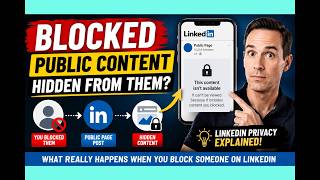
LinkedIn Blocking Broken? My Honest Test Results
18 views