
Email Your iPhone Texts: The Fast Copy/Paste Method + Screenshot Method
Need to send a text message (SMS/iMessage) from your iPhone to someone’s email? In this tutorial I show two fast, reliable methods: • Method 1: Copy & paste parts of the text into a new email (great for quotes, dates, addresses). • Method 2: Take screenshots of the conversation and email the images (perfect for keeping context and time stamps). You’ll see when to use each method, how to capture clean screenshots, and simple privacy tips before you hit send. What you’ll learn: • Copy & paste a text into Mail or Gmail on iPhone • Capture, crop, and attach screenshots of a message thread #iPhoneTips #iMessage #Email #HowTo #SeniorTech Learn two easy ways to send a text message from your iPhone to someone’s email: copy/paste the text into an email, or screenshot the conversation and attach it. I also share quick privacy and formatting tips so your message is clear and professional. Keywords: iPhone, text to email, iMessage, screenshots, copy and paste. Send a Text by Email from iPhone: Copy/Paste or Screenshot (2 Easy Methods) How to Email a Text Message on iPhone (Two Quick Ways: Copy & Paste + Screenshots) iPhone Tip: Forward a Text to Email in Seconds — Copy/Paste or Screenshot Email Your iPhone Texts: The Fast Copy/Paste Method + Screenshot Method Share Text Messages by Email on iPhone (Step-by-Step: Copy/Paste & Screenshots) iPhone Basics: Send a Text Message to Email (Two Methods You’ll Actually Use)
🎬 More from LinkedIn Support for Real-World Results

After Years on Quora, I'm Done
5 views

Rapport Sucks
6 views
LinkedIn & YouTube Strategy: 5 Tips for Small Business
14 views

ChatGPT: The Only Tutorial You Need to Get Started
53 views

DDCC SBC- Using YouTube & LinkedIn as Business Tools Webinar - 05/21/26 (AI Version)
17 views
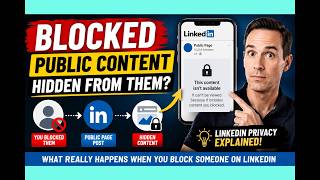
LinkedIn Blocking Broken? My Honest Test Results
18 views