
USB-C to HDMI Not Working on Android. Here's the Fix!
🛍️ Products Mentioned (1)
Struggling with a USB-C to HDMI cable that won't connect your Android phone to a TV, monitor, or projector? Get it here: https://amzn.to/3QREfFS (Amazon Affiliate Link) You aren't alone! In this video, I’ll show you the exact steps to fix the "No Signal" or "Weak Signal" error on Android devices. Whether you’re trying to mirror your screen for a presentation or watch movies on a big screen, these troubleshooting steps will get you connected in minutes. ✅ What you’ll learn in this tutorial: Why "high-quality" 8K cables are essential. How to enable Developer Mode on Android (tapping Build Number 7 times). Turning on USB Debugging to force a connection. Changing the Default USB Configuration to MIDI or Data Transfer. The "180-degree twist" trick that fixes most physical connection issues. 🚀 SEO & Troubleshooting Checklist: If your phone supports DisplayPort Alt Mode (DP Alt Mode) but still won't display, follow along! This fix works for Samsung Galaxy, Google Pixel, and most modern USB-C Android smartphones. 📌 Timestamps: 0:00 - USB-C to HDMI Not Working? Let’s Fix It! 0:23 - Checking Cable Quality & Specifications 0:48 - Entering Android Developer Options 1:16 - Enabling USB Debugging & USB Config 2:10 - The Physical Connection Trick (180 Twist) 2:33 - Success! Connected to External Display #AndroidFix #USBCHDMInotworking #ScreenMirroring #TechTutorial #AndroidTips #ProjectorFix #HDMIAdapter #DPAltMode #SmartphoneTech
🎬 More from Smart Devices Channel

Apple home Accessory Not Responding. Here's hot to Fix!
21 views
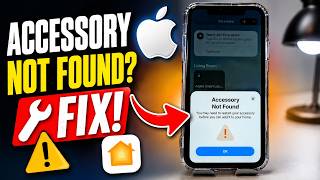
Accessory Not Found by the Apple Home App. Here's Why!
41 views
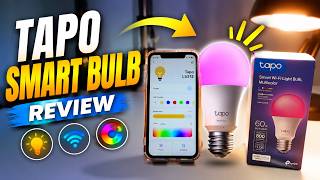
Tapo Smart Bulb Review. Is It Good? Watch Before You Buy!
85 views
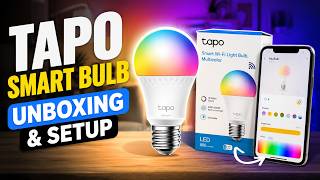
Tapo Smart Bulb Unboxing and Setup
69 views
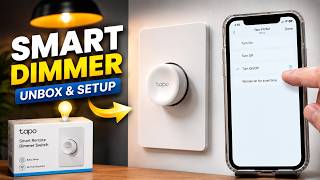
Tapo Smart Remote Dimmer Switch Unboxing and Setup (S200D)
154 views
Projector Remote Not Working? Here's The Fix!
380 views