
Tapo C615F Kit Setup
🛍️ Products Mentioned (2)
Learn how to set up the TP-Link Tapo C615F Kit step by step in this complete beginner-friendly tutorial. In this video, I show you exactly how to power on the camera, connect it to the Tapo app, pair via Bluetooth, connect to your WiFi router, configure settings, update firmware, and start using your camera in minutes. 👉 Get the Micro SD Card: https://amzn.to/4tmotRQ (Amazon Affiliate Link) 👉 Get the Camera : https://amzn.to/474XHUL (Amazon Affiliate Link) If you just bought the Tapo C615F outdoor security camera and need help with installation, WiFi setup, SD card recording, or cloud subscription options, this guide walks you through everything. This setup works for: TP-Link Tapo C615F Kit Tapo outdoor pan tilt camera installation Tapo WiFi camera first time setup Tapo app configuration Local SD card recording setup Tapo firmware update process I also show: ✔ How to insert and use a microSD card (Lexar / SanDisk recommended) ✔ How to skip Tapo Care cloud trial ✔ How to connect via Bluetooth ✔ How to configure video quality, frame rate, privacy zones ✔ How to use pan & tilt controls ✔ How to enable two-step verification ✔ How to update firmware automatically (3AM–5AM schedule) Whether you're searching for: “Tapo C615F setup” “How to install Tapo C615F” “Tapo C615F not connecting to WiFi” “Tapo C615F SD card setup” “Tapo outdoor camera installation” “Tapo camera flashing red and green” “How to add Tapo camera to app” This video covers it all. After setup, you can explore: • Video quality settings • Image color adjustments (cool/warm) • Privacy zones • Motion detection • Local storage vs cloud recording • Tapo Hub compatibility If this helped you, leave a comment with your setup experience and don’t forget to subscribe for more Tapo camera tutorials, smart home guides, and troubleshooting videos. ⏱ Chapters 00:00 Introduction 00:20 Powering On the Tapo C615F 01:10 LED Flashing Red and Green Explained 02:00 Downloading the Tapo App 02:45 Adding a New Device 03:30 Selecting Tapo C615F Model 04:20 Bluetooth Pairing 05:10 Connecting to WiFi Router 06:10 Naming the Camera & Location Setup 07:00 Cloud Trial Option (Tapo Care) 08:00 SD Card Installation & Local Recording 09:00 Firmware Update Settings 10:00 Pan & Tilt Controls 11:00 Video Quality & Privacy Zones 12:00 Final Setup Complete
🎬 More from Smart Devices Channel

Apple home Accessory Not Responding. Here's hot to Fix!
21 views
Accessory Not Found by the Apple Home App. Here's Why!
41 views
Tapo Smart Bulb Review. Is It Good? Watch Before You Buy!
85 views
Tapo Smart Bulb Unboxing and Setup
69 views
Tapo Smart Remote Dimmer Switch Unboxing and Setup (S200D)
154 views
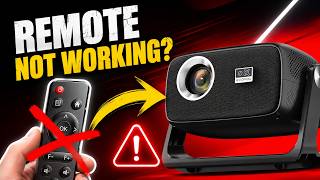
Projector Remote Not Working? Here's The Fix!
380 views