
Projector Screen Mirroring Not Working - Here's Why!
🛍️ Products Mentioned (1)
Struggling to get your iPhone to mirror to your projector? 📱🔌 You’re not alone! In this video, we dive into the #1 reason why your screen mirroring is failing and show you the exact, step-by-step fix to get your connection working in seconds. Get the projector: https://amzn.to/4dDu3sn (Amazon Affiliate Link) Whether you're seeing a "No Device Found" error or your projector simply isn't showing up in the AirPlay list, the solution is usually much simpler than you think. We cover the critical difference between Miracast (for Android) and Cast (for iOS) settings, and why your Wi-Fi network configuration is likely the culprit behind your connection headaches. What You’ll Learn in This Tutorial: The "Cast" vs. "Miracast" Mistake: Why selecting the wrong app on your projector prevents your iPhone from connecting. The Same-Network Rule: How to identify if your phone and projector are actually on the same signal (Main Router vs. Extender/Repeater). Real-Time Fix: Watch us troubleshoot a live connection, change Wi-Fi settings, and successfully mirror the screen. Timestamps: 0:00 Intro: Why iPhone Projector Mirroring Fails 0:18 Choosing the Right App: Miracast vs. Cast 1:03 The Hidden Wi-Fi Error (Router vs. Repeater) 1:35 How to Switch Networks for a Perfect Connection 2:15 Success! Screen Mirroring Working on iPhone 2:42 Final Checklist for All Projector Brands Stop wasting time with laggy connections! If this video helped you fix your projector, make sure to SUBSCRIBE for more tech tutorials, LIKE the video, and drop a comment if you have questions about your specific projector model!
🎬 More from Smart Devices Channel

Apple home Accessory Not Responding. Here's hot to Fix!
21 views
Accessory Not Found by the Apple Home App. Here's Why!
41 views
Tapo Smart Bulb Review. Is It Good? Watch Before You Buy!
85 views
Tapo Smart Bulb Unboxing and Setup
69 views
Tapo Smart Remote Dimmer Switch Unboxing and Setup (S200D)
154 views
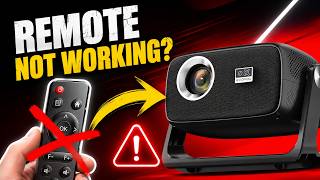
Projector Remote Not Working? Here's The Fix!
380 views