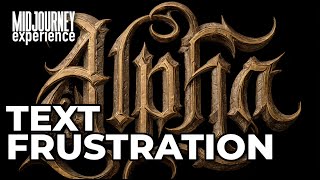
Fast Track Your Creativity Midjourney to Photoshop Text Effects!
🛍️ Products Mentioned (1)
Join the Midjourney Experience Community! Learn how to use the tool faster with friendly help. https://www.skool.com/midjourneyexperience/about Sick of spending hours fine-tuning text textures in Photoshop? Imagine generating eye-catching textures in seconds with Midjourney AI—then effortlessly applying them to your designs! In this tutorial, I’ll walk you through three professional text effects that you can create in just a few clicks! 📌 What You’ll Learn: ✔️ How to quickly generate stunning texture backgrounds with Midjourney ✔️ The secret curly bracket trick for rapid creative variations ✔️ A simple way to clip textures into text in Photoshop ✔️ Pro techniques to enhance and polish your designs ✔️ A streamlined AI-to-Photoshop workflow that saves HOURS of work 💡 5 Simple Steps to Pro-Level Design: 1️⃣ Generate textures in Midjourney using curly brackets {} (e.g., Tonal Blue Seashells, Weathered Wood Cladding, Tropical Beach Sunset) 2️⃣ Use --R 4 to instantly create multiple variations 3️⃣ Select and download the best textures for your project (social media, branding, posters, etc.) 4️⃣ Import textures into Photoshop & use clipping masks to apply them to text 5️⃣ Adjust colors, shadows & effects to make your design pop! 🎯 Timestamps – Skip to What Matters! ⏳ 00:00 – STOP Wasting Time on Textures! (Midjourney Hack) ⚡️ 00:27 – Step-by-Step Guide to Generating Pro-Level Textures 🎨 01:18 – The Curly Bracket Trick for Speedy Variations 🔍 02:46 – Choosing the Best Texture for Your Project 🖌 03:56 – Quick & Easy Photoshop Clipping Mask Method 🚀 05:01 – Final Text Effects: Which One’s Your Favorite? 💬 What’s your favorite texture style? Drop a comment below and let’s create something awesome together! ⬇ With Midjourney AI, you can generate unique textures in seconds and seamlessly integrate them into Photoshop. No more wasting time on manual texture creation—this method is a total game-changer for designers! ✨ Love this tutorial? Smash that LIKE, hit SUBSCRIBE, and turn on notifications 🔔 so you never miss an AI design hack! 💡 Want more Midjourney + Photoshop tips? Let me know what tutorials you’d love to see next! 🚀 #midjourney #midjourneyexperience #midjourneycommunity