
How to Password Lock All Google Play App Downloads | For Parents
🛍️ Products Mentioned (2)
*This video goes through how to password protect both Google Play Store as well as a devices´ web browser. To prevent installing of apps and visiting ad-websites trough in app clicks.* If you occasionally let you child use your Android-tablet or -phone there is always the (fairly high) chance that a few new games might be installed from clicking those nasty ads in basically every free Android game available. As well as that there might also be just as many new ad-websites opened from clicking those, just as horrible, ad-links in the games and apps available on Google Play Store. To stop this mad behaviour (from Android, not your kid) you’d think there would be a way to just password lock Google Play Store app downloads. But no. At least not in any good way. So here I am instead going to show my preferred work-around for this stupid limitation. And that is by instead locking both the whole Play Store app. As well as the web browser app to prevent all the ad-websites from appearing when your child accidentally click on an in game ad. The way to do this is a little different on different devices. The exact steps in the video should be roughly the same for _Huawei, Lenovo, Nothing, OnePlus, OPPO_ and _Xiaomi_ tablets and phones. Whereas for _Samsung_ and _Google Pixel_ devices the process is a little different, even though the concept is fairly similar. Please see below for more information on _Samsung_ and _Pixel_ devices specifically. *HOW TO FIND THE APP LOCK FUNCTION* The easiest way to find the _App Lock_ function is usually to just search for it using the search field up the top under _Settings._ For paths for specific devices, see below. - *Google Pixel:* Pixel phones and tablets uses a feature similar to _Samsung_ where you hide apps away in a password protected folder, here called ”Private Space”. The function is found under _Settings - Privacy & security - Private space._ - *Huawei:* _Settings - Security - App Lock_ - *Lenovo:* _Settings - Security and Privacy - App Lock_ - *Nothing:* _Settings - Apps - App locker_ - *OnePlus:* _Settings - Security and Privacy - App Lock_ - *OPPO:* _Settings - Security & Privacy - App Lock_ - *Samsung:* _Samsung_ tablets and phones does not have the same _App Lock_ feature built in, but instead uses a function called _Secure Folder_ in which you put apps you want to password protect. The function is found under _Settings - Security and Privacy - More Security Settings - Secure Folder._ Stupidly enough though the Play Store app usually can not be added to a _Secure Folder_ since it is a system app. So for Samsung phones this is a bit of a hit and miss unfortunately. - *Xiaomi:* _Settings - Apps - App lock_ Please share any questions in the comments below and I´ll do my best to answer them! *~* 🔥 My *#1* Tech Products of Right Now → https://amzn.to/4kgYrdP 🧰 My YouTube Video Gear → https://amzn.to/43nTOZJ
🎬 More from Get There Faster

Samsung The Movingstyle | Review | Best One So Far
673 views

Ford S-Max 2.2 TDCi | How to Replace the Engine Air Filter
81 views
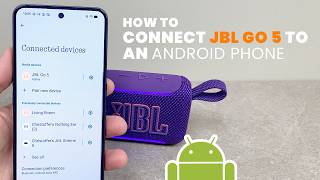
How to Pair JBL Go 5 to an Android Phone
127 views

JBL Xtreme 5 | Review | Mucho Sound!
1.5K views

JBL Go 5 | Review | The Mini Speaker to Get
1.6K views

Stumble Guys | Login Failed | How to Fix
1.2K views