
STOP Using Xbox Fullscreen Experience Wrong
🛍️ Products Mentioned (3)


The Xbox Fullscreen Experience looks great until you actually use it. In this video, I’ll show you the exact fixes that make it feel like a real console UI, whether you’re on the ROG Ally X, Lenovo Legion Go, or any Windows handheld. You’ll learn how to: - Add custom game cover art for Steam or non-Game Pass titles using SteamGridDB - Create custom shortcuts for apps like File Explorer or Microsoft Store with One Game Launcher - Clean up and rearrange the Xbox Game Bar widgets for a smoother, faster experience - Install the AMD Control Panel widget to toggle performance features like Frame Generation and RSR directly from the overlay These four quick tweaks transform the Xbox Fullscreen Experience from “almost there” to “actually enjoyable.” 📖 Chapters: 00:00 Xbox Fullscreen Experience Is Broken 00:18 Add Custom Game Cover Art (Game Pass & Steam) 02:08 Install and Set Up SteamGridDB 02:58 Change Custom Game Covers with SteamGridDB 04:28 Add Custom Shortcuts to Xbox Fullscreen Experience 06:02 Install One Game Launcher for Custom Shortcuts 08:01 Rearrange and Clean Up Xbox Game Bar Widgets 08:15 Why Xbox Game Bar Feels Like a Mess 10:24 Add AMD Control Panel Widget for FPS Boosts 13:27 Final Thoughts – Xbox Fullscreen Is Good, But Not Great Yet Let's be best friends: https://www.instagram.com/emmagine79 👍 Support the Channel: Like, subscribe, and hit the notification bell to get the latest tech insights and reviews. Your support fuels our passion for tech and helps us bring more content to you! Paypal: https://paypal.me/emmagine79 Buy Me A Coffee: https://ko-fi.com/geekception Get Secret Updates: https://www.instagram.com/emmagine79 edited with Gling.ai, start your edits fast today. signup: https://gling.ai/?via=geekception 🔗 Stay Connected: For more tech insights, tips, and reviews, follow us. Join our community for exclusive content and discussions! Twitter - https://twitter.com/geekceptiontech Facebook - https://www.facebook.com/geekception Instagram - https://www.instagram.com/geekception 🙏 Special Thanks: A huge shoutout to ASUS for providing this Xbox Ally X unit for review. All opinions in this video are my own, offering an unbiased look. ✉️ Want Us To Check Out Your Product/Service?: Get in touch: geekception@gmail.com 📌 Keywords: #xboxfullscreenexperience #xboxallyx #legiongo2
About This Video
Frequently Asked Questions
🎬 More from Geekception

Galaxy S25 Ultra vs S26 Ultra: Should You Upgrade?
1.9K views

Galaxy S24 Ultra vs S26 Ultra: Worth Upgrading?
36.3K views
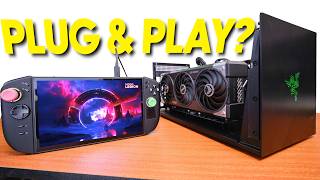
The Truth About eGPU Gaming on Xbox Ally X & Legion Go 2
8.0K views

Legion Go 2: My BIGGEST Regrets
14.7K views

Legion Pro 32UD-10 Monitor Unboxing and Review
5.0K views

This REDMI Phone Has 400% Volume Boost?
342 views