
How to Set Up an All in One Entertainment App with Downloader Code 2026
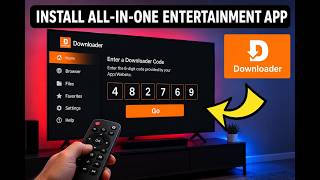
In this video, you’ll discover how to set up an all-in-one entertainment application on Smart TV, Android TV, and Firestick using the Downloader tool. The tutorial walks you through how the Downloader app functions, which device settings need to be enabled, and how downloader codes can be entered to reach supported resources in a clear and organized way. 📩 For Promotions & Collaborations – Electronic Secret 🌐 Business Email: ebusiness618@gmail.com Downloader is a widely used utility available on both the Google Play Store and the Amazon App Store. It allows users to retrieve files and manage app installation options on compatible streaming devices. In this step-by-step guide, you’ll learn how to configure the Downloader app correctly, input downloader codes, and finish the installation process smoothly. Whether you’re using a Firestick, Android TV, or Smart TV, this walkthrough will help you understand the basics of downloader codes, device configuration, and installing applications on your device. If you enjoy learning about smart TV apps, useful Downloader tips, and ways to customize your streaming device, make sure to watch the video until the end and follow each step carefully. 💡 Disclaimer: This content is provided for educational and informational purposes, focusing on device settings and general app installation methods. 👍 If you found this guide helpful, subscribe to Electronic Secret, press the bell icon, and like the video to support the channel. 💬 Leave a comment below if you’d like to see more tutorials about Downloader, Smart TV apps, Firestick guides, and Android TV features. 🔖 Hashtags #downloaderapp #downloadercodes #downloader2026 #firestick #androidtv #smarttv #downloaderguide #downloadertutorial #firesticktips #androidtvtips #smarttvtips #appinstallation #techguide #streamingtips #electronicsecret
About This Video
Frequently Asked Questions
🎬 More from Electronic Secret
👉Step by Step Guide to Install an All in One Entertainment App with Downloader Codes 2026
1.4K views
Secret Firestick Settings 2026 😱 Install ANY App, Movies & TV Channels!
863 views
How to Install Downloader APK on Android TV & Firestick (2026 Updated Guide)
3.8K views
🔥Downloader Codes 2026🔥
28.8K views
How to Install Google Play Store on Any Smart Tv 2026
2.9K views
✅How to Install an All-in-One Entertainment App Using Downloader
10.6K views