
Setup Amcrest IP Camera to record footage to a PC; view live video & play back from a PC
🛍️ Products Mentioned (3)
In this video, we will show you how to configure Amcrest IP cameras and DVRs to record footage to a PC, and how to view live videos and play back on a PC. There are two ways. One is to setup an FTP server on your PC and then configure the camera to record footage to the FTP server. Please watch these two videos for the detailed steps: https://youtu.be/r0C5HIKAmio (Setup FTP server on PC) https://youtu.be/ZElkCy9_lyM (Configure Amcrest to record to FTP server) This method has no service fees but requires computer skills. The other method is to use CameraFTP VSS software. VSS can connect to multiple IP cameras and DVRs, display live videos and record footage to a local drive or the cloud. It is like a CCTV DVR system. We will only talk about this method here. First, please make sure the PC and the camera are connected to the same network. Then download CameraFTP VSS software from https://www.CameraFTP.com and install it. Launch VSS and then log in or sign up for a free trial. Click Add, then click IP camera. It will start searching for cameras in the local network. After it finishes, it will display a list of IP cameras. If the ONVIF authentication is disabled, you can easily locate the camera by its name; otherwise, the camera name is incorrect, but you can still locate it. You can enable/disable ONVIF authentication by logging in to your camera and visit this page: Select the Amcrest camera, click Next, then log in with your Camera's username and password. Click Next, it will start searching for the camera's video stream URLs. Wait for it to finish, then select the stream with higher resolution. Click Next. It will connect to the video stream. Follow the wizard to finish adding the camera. The live camera video is now displayed in VSS's main window. You can add more cameras by clicking the Add button. VSS can run in the background service mode. It can automatically start if your PC is rebooted. It also supports full-screen mode and you can lock the software or PC so that other users cannot stop the camera. To record footage to a local drive on your PC, you just need to order a local recording plan and then bind the camera with a local recording license in camera settings. You can set very high video parameters as long as your PC has enough storage space and processing power. To play back recorded footage, hover your mouse on top of the camera live view, then click the "Rewind" button. If you ordered a local recording plan, you can optionally upload a small amount of footage to the cloud. You can then install CameraFTP Viewer app for iOS and Android, or log in to CameraFTP.com website to view the cloud footage from anywhere. ----- https://www.CameraFTP.com/ CameraFTP VSS software: https://cameraftp.com/cameraftp/software/Download_Virtual_Security_System.aspx Amcrest Setup Guide: https://cameraftp.com/CameraFTP/Support/Amcrest_FTP_CloudRecording.aspx
🎬 More from DriveHQ_CameraFTP
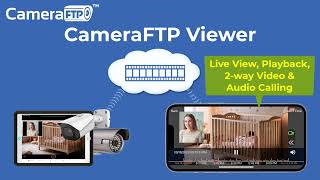
CameraFTP Viewer - Live View, Playback, 2-way Video & Audio Calling of IP camera, NVR & mobile cam
14.7K views
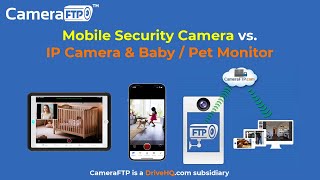
Mobile Security Camera vs IP Camera & Baby Monitor: Use Phone/Tablet as IP Camera & Baby/Pet Monitor
19.9K views

Advanced File Locking & Team Collaboration Solution for Adobe applications (Photoshop, AI, Acrobat)
144 views
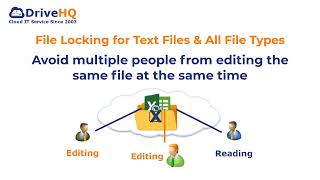
File Locking and Team Collaboration for all file types, incl. Text, Wordpad and Adobe files
275 views
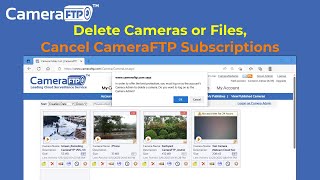
How to Delete Cloud Camera Folders/Files, Cancel CameraFTP Subscription, Reset Camera Admin Password
2.4K views
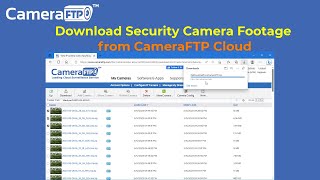
How to Download IP Security Camera Footage from CameraFTP Cloud Storage
1.6K views