
How to use DriveHQ Online Backup software
🛍️ Products Mentioned (2)
www.DriveHQ.com offers a complete data backup solution for business and home. It includes: - Local-to-cloud backup - Cloud-to-cloud backup: - Cloud-to-local backup: - IP camera and DVR cloud backup. (Visit www.CameraFTP.com for more info. ) In this video, we will only talk about DriveHQ Online Backup software. It can automatically back up desktops, laptops and servers with the following advantages: 1. Extremely easy. Just set a backup task, and it will automatically back up your data. 2. Multiple backup tasks. You can create multiple real-time or scheduled tasks to back up different folders. 3. Background Service mode. It can back up your computer even when nobody is logged in. 4. Database, Outlook and Quickbooks backup. It can back up files that are being used or locked, such as Database files, Quickbooks or Outlook PST files. 5. Network Drive Backup It can back up Linux or Unix servers, Mainframes and NAS storage from a Windows PC. 6. Group Backup: Backup all PCs in an organization. Supports remote management, view or manage group backup tasks. 7. Encrypted Backup: Your data is encrypted locally with your own encryption key before it is uploaded to the cloud. Even DriveHQ support staff cannot decrypt your data. Now, let's download and install DriveHQ Online Backup first. After installation, launch it and then log in to the software. It will display the application's main screen with 4 tabs or buttons: Create Backup Tasks, Manage Tasks, Restore Files or Folders, Account Options. Click "Create a Backup Task", it will display the Create window. There are 3 buttons: (1) Quick Backup: it allows you to create a small real-time backup task in just one step. You just need to select a source folder to back up, then Click Finish to create the task. It will immediately start backing up your files in real-time. (2) Advanced Backup: It allows you to create a real-time or scheduled backup task with advanced options. Select a source folder, then select a backup schedule. Click Next, you can enter the task name and description, then choose whether to exclude some files and folders, or only back up some files and folders. For best security and privacy, you can check the checkbox "With Encryption". The first time you check this option, you will need to set your own encryption key. Your files will be encrypted locally with your encryption key. The key is never sent to the server. So it is extremely secure. Please note if you lose the key, even DriveHQ support staff cannot decrypt your files. (3) Email or Database Backup: It allows you to create a scheduled task to back up large database-type of files, such as Outlook PST files, SQL database files, Quickbook files or other files that are locked by a database program. DriveHQ Online Backup supports Volume Shadow Copy technology. If a file is locked or being used, it can create a snapshot of the file and back up the snapshot. A database or PST file is constantly locked or updated, real-time backup is inefficient. If the file is small, you can back it up daily. Otherwise, weekly backup is recommended. After you created a backup task, you can view or edit it by clicking the Manage Tab. It will display a list of tasks. Select a task and click Edit, you can edit the task info. Not all fields can be edited. For example, you cannot change the backup source folder. To backup a different source folder, you can create a new backup task. If you need to restore files, you can click the Restore tab, navigate to a folder or file and click: "Restore to original location" or "Restore to new location". You can restore an older file version, or restore a folder back to a specified time. You can also use DriveHQ FileManager software to retore files or folders with drag and drop. - DriveHQ Online Backup has many advanced features for business, such as: - Backup network drives; - Remote Management; - Group backup; - View or manage Group Backup Tasks. For more info, please visit the Online Help page. ------ https://www.DriveHQ.com https://www.drivehq.com/downloads/downloadonlinebackup.aspx
🎬 More from DriveHQ_CameraFTP
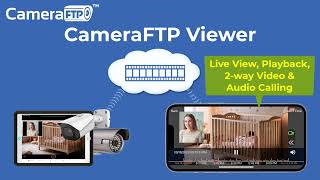
CameraFTP Viewer - Live View, Playback, 2-way Video & Audio Calling of IP camera, NVR & mobile cam
14.7K views
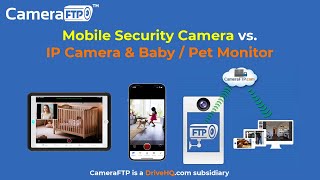
Mobile Security Camera vs IP Camera & Baby Monitor: Use Phone/Tablet as IP Camera & Baby/Pet Monitor
19.9K views

Advanced File Locking & Team Collaboration Solution for Adobe applications (Photoshop, AI, Acrobat)
144 views
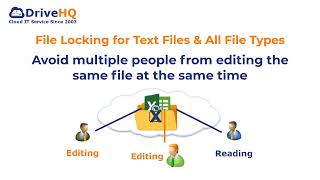
File Locking and Team Collaboration for all file types, incl. Text, Wordpad and Adobe files
275 views
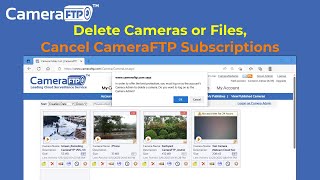
How to Delete Cloud Camera Folders/Files, Cancel CameraFTP Subscription, Reset Camera Admin Password
2.4K views
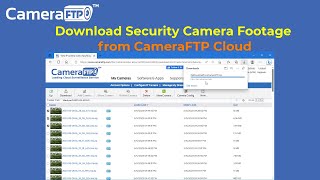
How to Download IP Security Camera Footage from CameraFTP Cloud Storage
1.6K views