
How to Setup Hikvision IP Camera to Record to PC/Cloud and View Live Video From a PC
🛍️ Products Mentioned (5)
Hikvision camera setup guide
CameraFTP Viewer is a FREE app for watching security camera videos. It supports live viewing, playback, and 2-way video & audio calling for some cameras. It is available on iOS, Android, Mac and Windows. (Download from
Please visit
Drivehq Product
CameraFTP VSS software download page
In this video, we will show you how to configure Hikvision IP cameras to record footage to a PC (or cloud), and how to view live videos from a PC. We will use CameraFTP VSS software, a very powerful video surveillance application. VSS can connect to multiple IP cameras, webcams and DVRs, display live videos and record footage to the PC or the Cloud. It is like a CCTV DVR system. First, please make sure the PC and the camera are connected to the same network, but don't turn on the camera yet. Then download CameraFTP VSS software and install it. ( https://cameraftp.com/cameraftp/software/download.aspx ). Launch VSS and then log in or sign up for a free trial. Click Add, then click IP camera. It will start searching for cameras in the local network. After it finishes, it will display a list of IP addresses. Please record the IP addresses in the list. Now turn on the camera, wait for a while and scan the network again. The new IP address is the camera's IP address. Launch a web browser and connect to the camera at the IP address. It will ask you to set a new password for the camera. After that, you can optionally answer a few security questions, or click Cancel to skip them. It will then display the live view window. Click Configuration, it will display the main Setup screen. Click Network, then click Advanced Settings. Click Integration Protocol, then you can enable ONVIF and click Add to add an ONVIF user. Click Save. The Hikvision camera uses a default static local IP address. Usually you need to change it, or you can enable DHCP. After enabling DHCP, the camera will reboot to get a new dynamic IP address. Wait for a while, then find the camera again with VSS. Select the camera's IP address, click Next, then log in with your Camera's ONVIF user name and password. Click Next, it will start searching for the camera's video stream URLs. Wait for it to finish, then select a video stream with high parameters for high quality viewing and recording. Click Next. It will connect to the video stream. Follow the wizard to finish adding the camera. The live camera video is now displayed in VSS's main window. You can add more cameras by clicking the Add button. VSS can run in the background service mode. It can automatically start if your PC is rebooted. It also supports full-screen mode and you can lock the software or PC so that other users cannot stop the camera. To record footage to a local drive on your PC, you just need to order a local recording plan and then bind the camera with a local recording license in camera settings. You can set very high video parameters as long as your PC has enough storage space and processing power. To play back recorded footage, hover your mouse on top of the camera live view, then click the "Rewind" button. If you ordered a local recording plan, you can optionally upload a small amount of footage to the cloud. You can then install CameraFTP Viewer app for iOS and Android, or log in to CameraFTP.com website to view the footage from anywhere. Based in U.S., https://www.CameraFTP.com is a leading cloud recording service provider with very broad business features. -------------- Hikvision camera setup guide: https://cameraftp.com/CameraFTP/Support/HikVision_FTP_Cloud_Recording.aspx Download CameraFTP VSS software: https://cameraftp.com/cameraftp/software/Download_Virtual_Security_System.aspx CameraFTP is a division of https://www.DriveHQ.com, a leading cloud IT service provider.
🎬 More from DriveHQ_CameraFTP
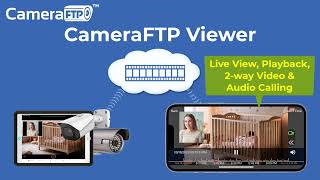
CameraFTP Viewer - Live View, Playback, 2-way Video & Audio Calling of IP camera, NVR & mobile cam
14.7K views
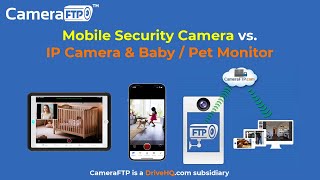
Mobile Security Camera vs IP Camera & Baby Monitor: Use Phone/Tablet as IP Camera & Baby/Pet Monitor
19.9K views

Advanced File Locking & Team Collaboration Solution for Adobe applications (Photoshop, AI, Acrobat)
144 views
File Locking and Team Collaboration for all file types, incl. Text, Wordpad and Adobe files
275 views
How to Delete Cloud Camera Folders/Files, Cancel CameraFTP Subscription, Reset Camera Admin Password
2.4K views
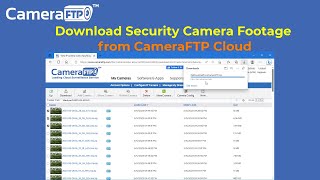
How to Download IP Security Camera Footage from CameraFTP Cloud Storage
1.6K views