
DriveHQ FileManager Introduction: Cloud File Sharing, Transfer, Folder Sync, Edit Cloud Files
🛍️ Products Mentioned (3)
(https://www.drivehq.com/downloads/downloadfilemanager.aspx) https://www.DriveHQ.com is a leading business cloud IT service provider offering very broad features. FileManager is a flagship client application for DriveHQ’s Cloud IT service. It has a very simple interface like Windows File Explorer. Users can easily manage cloud files with the following features: 1. Easy, reliable and efficient File Transferring. 2. Cloud File Sharing with granular access control. 3. File Publishing or hosting with static file URLs. 4. Very powerful Cloud Folder Synchronization. 5. Directly Editing Cloud Files & Saving Back to the cloud. 6. Cloud File Locking for group collaboration. 7. Encrypted Folder for ultimate security and privacy. To get started, please download and install DriveHQ FileManager, then, launch it and log in. By default, FileManager displays cloud folders in the left-hand side, and local folders in the right-end side. You can click the Display button to show only cloud or local files. For the cloud storage, the root folder is "DriveHQ Root". It is a virtual folder containing two other virtual folders: (1) My Storage. It contains all your cloud folders and files. It is like the "C:" drive on Windows. (2) DriveHQShare. It contains all folders and files shared with you by others. It is like "Network" on Windows. A personal user usually will use My Storage. A group member usually will use a folder in DriveHQShare that is shared with you by the group owner. You can easily drag and drop files or folders in FileManager. You can also drag and drop between FileManager and Windows Explorer. You can see very detailed progress info at the bottom of the FileManager window. FileManager is extremely efficient and reliable in transferring large amount of data. You can share folders with sub-users, subgroups, contact groups and non-DriveHQ users. To share a folder, just right click on a folder name in My Storage and select Share. You can share different folders with different users and set different permissions. If the other user is a DriveHQ member, he can simply log in to his account to access the shared folder in his "DriveHQShare" virtual folder. Otherwise, he will receive a share notification email. He can click the link in the email to access the shared folder. If you need static links to your cloud files, you must publish them first. To publish a folder, just right click on a cloud folder and select Publish. After you publish it, you can use FileManager to get the static file URLs. You can access cloud files directly from FileManager without folder synchronization. You can double click to open a file, edit it, and then Save it. It is automatically saved back to the cloud. You can even save it as a different file name. FileManager supports cloud file locking. If multiple users need to edit the same file, the file will be locked by the first user. Other users can open the file for read-only access. You can find the list of locked files by clicking Manage Locked Files in the Tools menu. If you accidentally deleted a file or folder, you can restore it from the Recycle Bin folder using FileManager. If you deleted a file in a shared folder, then you need the file owner to restore it. If you accidentally overwrote a file, you can use the file versioning feature to roll back or restore an older version. With FileManager, you can quickly locate a cloud file or folder. It is extremely useful if you need to work on many different folders or files. You can add frequently used folders into your Favorites, or create cloud Short-cuts and save them on your desktop. You can quickly navigate to the folder using Favorites or cloud short-cuts. You can use the Recent Files menu to quickly re-open a recent file; you can sort or search folders and files. It supports regular search and full-text search. If full-text search is enabled for your account, then you can search files based on key words in your files. FileManager offers the most powerful folder synchronization features. Just select a cloud or local folder and click Synchronize. You can: - Sync any cloud folder with any local folder; - Create multiple sync tasks to sync different folders; - Create real-time or scheduled sync tasks; - Create one-way or two-way sync tasks. FileManager supports client-side encryption. With this feature, your files are encrypted locally with your own encryption key before they are uploaded to the cloud. The encryption key is never sent to the server. Even DriveHQ support staff cannot decrypt your files. It offers ultimate security and privacy. To turn on this feature, please click Options and then click Encrypted Folder. FileManager has a lot more features. Please read the software manual: https://www.drivehq.com/file/df.aspx/publish/DriveHQ/DriveHQSoftware/DriveHQ_FileManager_Manual.pdf FileManager download page: https://www.drivehq.com/downloads/downloadfilemanager.aspx Website: https://www.drivehq.com
🎬 More from DriveHQ_CameraFTP
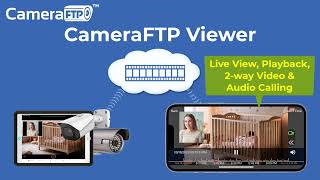
CameraFTP Viewer - Live View, Playback, 2-way Video & Audio Calling of IP camera, NVR & mobile cam
14.7K views
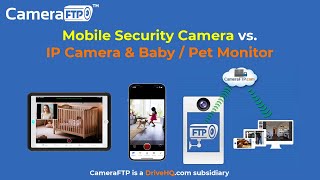
Mobile Security Camera vs IP Camera & Baby Monitor: Use Phone/Tablet as IP Camera & Baby/Pet Monitor
19.9K views

Advanced File Locking & Team Collaboration Solution for Adobe applications (Photoshop, AI, Acrobat)
144 views
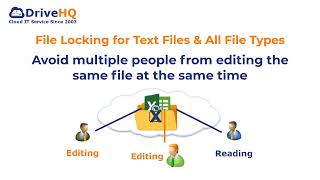
File Locking and Team Collaboration for all file types, incl. Text, Wordpad and Adobe files
275 views
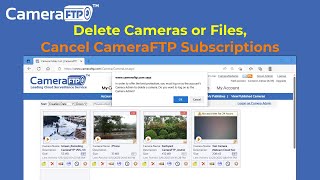
How to Delete Cloud Camera Folders/Files, Cancel CameraFTP Subscription, Reset Camera Admin Password
2.4K views
How to Download IP Security Camera Footage from CameraFTP Cloud Storage
1.6K views