
How to Install Free NCapture in Chrome - NVivo Guide to Download Social Media Datasets - English!
Welcome to this comprehensive guide on installing Ncapture from the Chrome Extension Webstore! In this step-by-step tutorial, we will explore the seamless process of setting up Ncapture—a powerful data collection tool for qualitative research—within the Chrome browser and integrating it with NVivo, the renowned qualitative data analysis software. By the end of this video, you'll be equipped with all the knowledge you need to harness the full potential of Ncapture for your research projects. So, let's dive in! Section 1: Introduction to Ncapture Before we embark on the installation process, it's essential to understand what Ncapture is and how it can enhance your qualitative research workflow. Ncapture is a browser extension specifically designed to capture web content, including web pages, social media posts, online articles, and more. With Ncapture, you can effortlessly collect, organize, and analyze online data within NVivo, making it a valuable tool for researchers. Section 2: Preparing the Chrome Browser To install Ncapture, we need to ensure that our Chrome browser is up to date and configured correctly. In this section, we'll cover how to update your browser, manage extensions, and enable the necessary settings to optimize Ncapture's performance. Section 3: Accessing the Chrome Extension Webstore Now that our browser is ready, it's time to navigate to the Chrome Extension Webstore—a vast repository of various browser extensions. We'll guide you through the process of locating the official Ncapture extension within the Webstore, ensuring you download the legitimate and latest version. Section 4: Installing Ncapture With the Ncapture extension found, it's time to proceed with the installation. We'll demonstrate the steps to add Ncapture to your Chrome browser seamlessly. From clicking the "Add to Chrome" button to granting necessary permissions, we'll ensure you successfully integrate Ncapture into your browser environment. Section 5: Configuring Ncapture Settings After installation, it's crucial to configure Ncapture according to your preferences. We'll explore the various settings offered by Ncapture, such as choosing the capture format (PDF, PNG, or HTML), defining default destination folders, setting up auto-capture options, and customizing shortcut keys for quick access. Section 6: Integrating Ncapture with NVivo To fully leverage Ncapture's potential, we'll demonstrate how to seamlessly integrate it with NVivo. We'll guide you through the steps required to establish a connection between Ncapture and NVivo, enabling smooth data transfer from your browser directly to your NVivo project. Section 7: Ncapture in Action Now that Ncapture is installed and integrated, it's time to witness its power in action. We'll walk you through practical examples of capturing web content, importing it into NVivo, and exploring the various analytical possibilities this integration offers. You'll gain insights into organizing captured data, applying coding structures, and conducting thematic analysis within NVivo. Section 8: Tips, Troubleshooting, and Conclusion In this final section, we'll provide additional tips and tricks to enhance your Ncapture experience. We'll address common troubleshooting scenarios and suggest solutions to potential issues you may encounter. Finally, we'll summarize the key takeaways from the tutorial and highlight the transformative impact Ncapture can have on your qualitative research endeavors. Conclusion Congratulations! You've successfully completed the tutorial on installing Ncapture from the Chrome Extension Webstore and integrating it with NVivo. By following these steps, you've gained a valuable tool that streamlines data collection and analysis
🎬 More from Doctor Square

No Login Required | Download TikTok Posts Data to Excel in 2026 | Export TikTok to CSV for Research
167 views
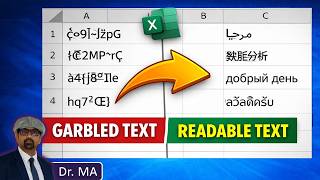
Fix Non-English Text in Excel - Fix Unreadable Multilingual Text in Excel
370 views
Download Twitter Data to Excel (No Coding) - 2026 | Export X Tweets to CSV
2.2K views
SciSpace New Features in 2026 - My Library, Zotero, Save to Notebook and Generate Report
79 views
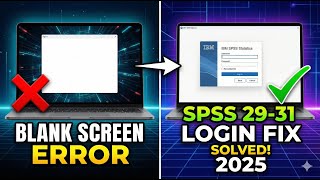
SOLVED: How to Fix SPSS Login Blank Screen Issue | SPSS 31, 30 & 29 Trial Activation Fix
3.7K views
Can We Really Detect AI Writing in Research Papers? Testing SciSpace AI Detector
55 views