
How to Create a List of Tables and Figures in Microsoft Word (Urdu/Hindi)
In this video tutorial, I'll show you how to easily generate a list of tables and figures for your Word document. A list of tables and figures can help readers navigate and reference key information in your document. Here are the steps we'll cover: Make sure you have captions set up for your tables and figures. Go to the References tab and click "Insert Caption" to add a caption with a label like "Table 1" or "Figure 2". Place your cursor where you want the list to appear, such as at the beginning of your document. On the References tab, click "Insert Table of Figures". Select either "Table of Tables" or "Table of Figures" from the dropdown menu. Choose a formatting style - you can use one of Word's preset formats or create your own custom format. Click OK. Word will automatically generate the list based on the captions you've set up for tables and figures in your document. The list will include the caption label and page number for easy referencing. Update the list if you add, remove or edit any tables or figures by right-clicking the list and selecting "Update field". With just a few clicks, you'll have a professional list of tables and figures that helps readers navigate your Word document.
🎬 More from Doctor Square

No Login Required | Download TikTok Posts Data to Excel in 2026 | Export TikTok to CSV for Research
167 views
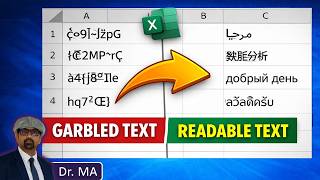
Fix Non-English Text in Excel - Fix Unreadable Multilingual Text in Excel
370 views

Download Twitter Data to Excel (No Coding) - 2026 | Export X Tweets to CSV
2.2K views

SciSpace New Features in 2026 - My Library, Zotero, Save to Notebook and Generate Report
79 views

SOLVED: How to Fix SPSS Login Blank Screen Issue | SPSS 31, 30 & 29 Trial Activation Fix
3.7K views

Can We Really Detect AI Writing in Research Papers? Testing SciSpace AI Detector
55 views